Saving Parameters of Cameras or Peripheral Devices
When modifying a camera parameter, the new value is directly applied and used by the camera. The same applies to the parameters of peripheral devices.
The current parameter settings stay unchanged as long as the respective device stays powered on and is not reconfigured even if MERLIC Creator or MERLIC RTE is restarted. Keep in mind that the settings can also be reconfigured by another software or by activating a different image source configuration which contains an image source linked with the same camera but different parameter settings.
To ensure that the configuration of the parameters can be loaded again, you have to save the respective settings as described below. In MERLIC, the parameter settings of cameras and peripheral devices are stored in a so called "parameter set".
For the sake of simplicity, we will refer in the following description to the parameters of camera devices. However, the description also applies for the parameters of peripheral devices if not otherwise mentioned.
Persistent vs. Non-Persistent Parameters
Persistent parameters are saved to the configuration files of the respective device. These configuration files are also known as .pers Files of the type .pers are used for the MERLIC Image Source Manager. They contain persistent parameters for a specific camera device. .pers files are used in combination with a .json configuration file. files. The saved parameter settings can then be restored after reconnecting the device.
To find out which parameters are persistent, you can use the  filter. The MVTec EasyParams are all persistent even if the respective camera parameter is not usually persistent for the camera device.
To ensure that the persistent parameters will be reliably restored when the device is reconnected, you have to save the changes.
Non-persistent parameters cannot be saved to the configuration files. Therefore, their settings will be lost after rebooting or reconfiguring a camera. If the camera is disconnected, you may also lose non-persistent parameters. In the user interface, non-persistent parameters are marked by the icon  .
.
Parameter Sets
In MERLIC, the parameter settings of cameras and peripheral devices are stored in a so called "parameter set". A parameter set contains a specific configuration of the parameters.
It is possible to define multiple parameter sets for a camera as well as for a peripheral device. However, for each image source representing a camera or peripheral device, a "primary" parameter set is automatically created. This primary parameter set cannot be deleted or renamed but you can overwrite it to change the parameters. The primary parameter set serves as a fallback and is used by acquisition sequences when no parameter set is specified or available.
All other parameter sets that are created for a device in addition the primary parameter set are called "alternative" parameter sets. They can be used to save a different configuration for a camera and can therefore be used as an alternative to the primary parameter set. Alternative parameter sets are given a name when they are created as described in the section Saving the Current Parameter Settings.
The concept of parameter sets enables you to save different parameter configurations for a camera for different use cases in advance. Whether parameter sets differ by only one parameter value or change many parameters all at once is up to you and generally does not affect the time it takes to switch between them.
Relation between Parameter Sets and Acquisition Sequences
Acquisition sequences can specify which parameter set to load for each device used in the sequence when it is activated. The parameter set thus serves as the starting point from which the acquisition sequence can operate when it is executed.
The base acquisition sequence uses the primary parameter set of each image source in the configuration to acquire images. Custom acquisition sequences can refer to alternative parameter sets by name to use them as the starting point of the sequence's execution.
To simplify the process of using alternative parameter sets, MERLIC defines so-called "managed acquisition sequences" for each alternative parameter set, across all devices in the configuration. These managed sequences behave similarly to the base sequence in that, when executed, they acquire one image per image source, in parallel, but they each will load the image sources' alternative parameter set of the same name when activated.
If you only have one image source in the configuration, there will be a one-on-one correspondence between alternative parameter sets and managed sequences. However, when more than one image source is used and they each define alternative parameter sets of the same name, there will only be one managed sequence of that name and it will use the corresponding alternative parameter set for each image source that has one; otherwise, the primary parameter set is used for any image sources which don't have an alternative parameter set of that name.
If a custom acquisition sequence is present whose name clashes with that of an alternative parameter set, no managed sequence will be created for that parameter set.
In the overview of the respective image source configuration, you will see an overview of all the acquisition sequences that are available, as soon as you save an alternative parameter set or have defined a custom sequence. The overview also indicates which parameter set will be loaded for which device when each sequence is activated.
Selecting the Current Parameter Set for an Image Source
To select or save the parameters of an image source, you first have to activate the image source configuration in which the respective image source is contained. Otherwise the parameters and saving options are not available.
Below the parameters table, a combo box indicates the currently selected parameter set. When clicking the combo box, the drop-down lists all available parameter sets for this image source. The primary parameter set is always the first entry, followed by any alternative parameter sets.
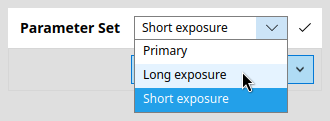
When selecting a parameter set from the list, the corresponding parameters will be loaded into the camera or peripheral device. Depending on the type of device and the manufacturer, this can typically take anywhere from a few milliseconds to several seconds.
Next to the combo box, a check mark icon indicates that the currently loaded parameters match those saved in the parameter set. When a parameter is modified, an asterisks icon indicates that parameters have unsaved changes. To restore consistency, you can either select the same parameter set again to reload the saved state or save the modified parameters.
When using the live image or executing MVApps in MERLIC Creator, the parameters currently loaded into the device will take effect, even if the currently active acquisition sequence stipulates that a different parameter set should be loaded upon sequence activation. The same caveat does not apply when executing recipes in MERLIC RTE as it will activate the recipe's acquisition sequence anew when preparing the recipe.
Saving the Current Parameter Settings
To save the parameters of an image source, you first have to activate the image source configuration in which the respective image source is contained. Otherwise the parameters and saving options are not available.
After you have selected an existing parameter set, you can tweak it according to the needs of your application. Refer to the topic Adjusting Camera Parameters for details. Once you are happy with the parameters currently set on the camera, you can either save them over the selected parameter set or save them as an alternative parameter set.
Keep also in mind that only the settings of persistent parameters can be saved and restored. For more information, see the section Persistent vs. Non-Persistent Parameters.
Saving the Settings for an Existing Parameter Set
- Make sure that the parameter set you want to adjust is selected.
- Click on the "Save parameters" button on the bottom of the parameter list. The settings will be saved to the currently selected parameter set. This can either be the primary parameter set or one of the pre-existing alternative parameter sets.
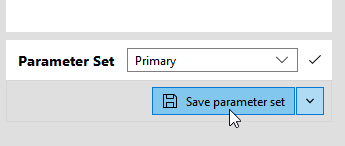
Saving the Settings to a New Parameter Set
Use the "Save as..." option in the drop-down menu of the button.
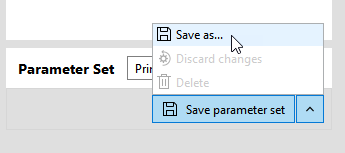
Use the downward-facing arrow to open a menu with additional options for managing parameter sets. Click the "Save as..." option. This will open a dialog which allows you to specify the name of an alternative parameter set that you want to save the parameter as.
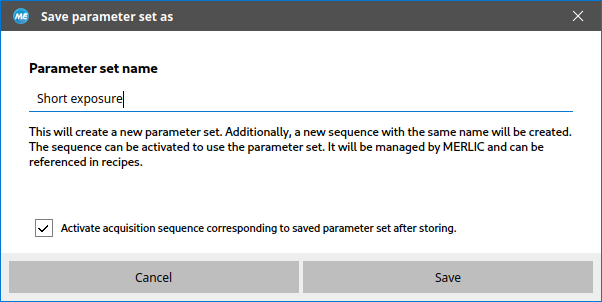
Also in this dialog, there's a check box which indicates whether the managed sequence corresponding to the alternative parameter set should be activated. Be mindful that activating an acquisition sequence affects all image sources and will load the alternative parameter set of the same name (or in lieu the primary parameter set) for all of them.
If you entered the name of an alternative parameter set which already exists, clicking "Save" will ask for your confirmation for overwriting it. Otherwise, a new alternative parameter with the given name will be created. Depending on whether any other image source already uses the same name for an alternative parameter set, the corresponding managed sequence will be updated or created automatically. Optionally, this managed sequence is also activated.
Removing an Alternative Parameter Set
When a parameter set is no longer needed, you can remove it by clicking the "Delete" option from the same menu that also hosts the "Save as..." option. Currently, it is only possible to remove the selected parameter set. Note that the primary parameter set cannot be removed.
Removing the parameter set will by itself not change the parameters which are currently set on the device. The selected parameter set will change to the primary parameter set, though, so the icon next to the combo box will indicate that the current camera parameters do not correspond to what is saved in the selected parameter set. You can resolve this by saving the parameters or by manually selecting another parameter set.
If the removed parameter set was the last one by that name for any of the image sources, the corresponding managed sequence will be removed along with it. One peculiarity arises when that managed sequence is active at the time: the default acquisition sequence will be activated in its place, and all image sources will load parameter sets accordingly. In this case only, the current camera parameters would be lost, so a confirmation prompt is shown prior to removing the parameter set. See Viewing and Activating Acquisition Sequences for information on the interplay between the default sequence and sequence activation.


