Branch on Condition
Use this tool to define which tools are to be executed if a certain condition is true and which tools are to be executed if the condition is not true. It is similar to the tool Evaluate Expression with the difference that this tool allows you to specify the further processing depending on the evaluated condition.
The condition can contain numeric and string results of previous tools or values that have been specified manually. However, the condition should be defined thus that its result can be mapped to a boolean value.
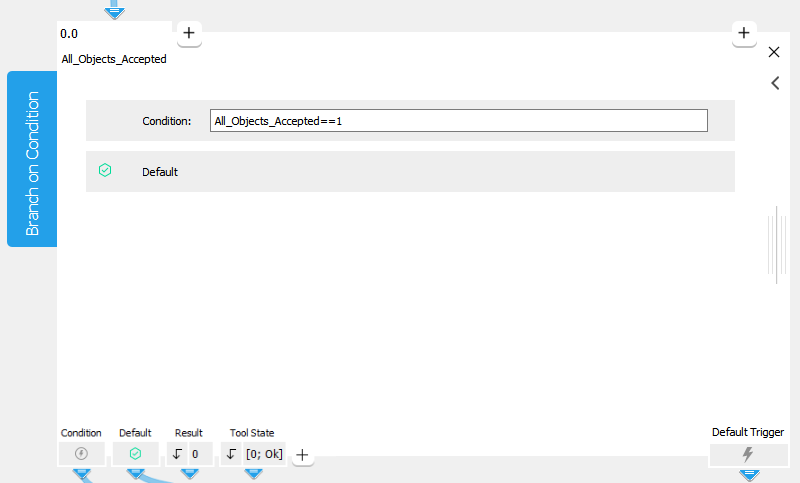
In contrast to other MERLIC tools, this tool has no default parameters when it is inserted. If you want to use parameters in your condition, you need to add them manually to the tool. See the section Adding Parameters for more information. On the bottom of the Tool Board two branch trigger connectors are listed by default: "Condition" and "Default". For more information about trigger connectors see Trigger Connectors.
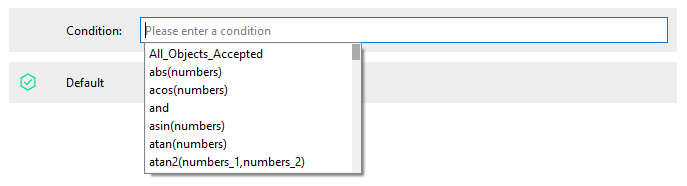
Instead of a graphics window, this tool shows an input field in which the condition can be defined. When you type into the condition input field, an auto-completion list with possible functions and operators that match your entry pops up. The list also contains manually added parameters and former defined results.
To browse directly from the entire list, open the pop-up manually with the shortcut CTRL+Space. Find out more about the possible functions and operators in the topic Evaluate Expression.
The icon  indicates which branch trigger is activated.There is always one branch trigger activated: If the condition is true, the connector "Condition" becomes active and sends a trigger. In every other case the branch trigger "Default" is active and sends a trigger, i.e., if the condition is not true, no condition has been defined yet, or the tool is in an erroneous state. All tools that are connected to the active connector will be executed.
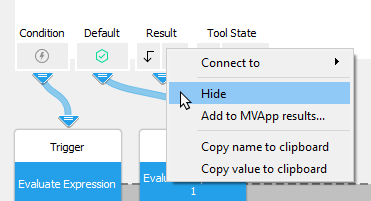
You can hide the results on the bottom of the Tool Workspace, e.g., if there are intermediate results that are not connected to any other tool and that are only used further down the Tool Flow. Right-click on the result you wish to hide, and select "Hide". To show a hidden result, use the  button on the right side of the results.
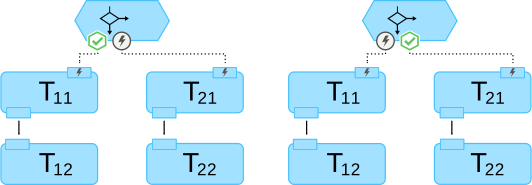
The following images show a schematic representation of a "Branch on Condition" tool with two branches. Both branches include two tools. In the example on the left side, the condition is true. Thus, the connector "Condition" sends a trigger and the branch containing the tools T11-T12 is executed. In the example on the right side, the condition is not true. Thus, the connector "Default" sends a trigger and the branch containing the tools T21-T22 is executed.
Tool Flow Options
MERLIC supports additional visualization options for the tool "Branch on Condition". When the Tool Flow options are enabled, they highlight tools that are skipped during the execution. For more information see the topic Tool Flow.
Parameters
This tool has no default parameters. Thus, there are no parameters displayed, when the tool is inserted. If you want to use a parameter value in your expression, you can either use the result value of a previous tool or you can define a new parameter for the tool.
Supported Semantic Types
This tool supports the following semantic types for the parameters:
- any
- double
- long
- string
Although not all semantic types are supported for this tool, you can still use any numeric or string result of a previous tool, even if the semantic type of this result is not supported, e.g., 'tool state'. However, if a connection to such a result is created, the semantic type of the respective new parameter is set to 'any'.
Since the semantic type 'long' represents integers but with a larger value range, we will still refer to them as integers in the following description.
Adding Parameters
Using a Result of a Previous Tool as Parameter
To use a result of a previous tool in your expression, you need to connect the result to the "Branch on Condition" tool.
- Go to the previous tool whose result you want to use as a parameter in the "Branch on Condition" tool.
- Drag the arrow of the connection from the desired tool result to the drop target for connections. Alternatively, you may open the context menu and click on the menu entry "Connect to".
- Select the tool "Branch on Condition" and click on the menu entry "< add connection >".
The connected result is instantly added as a new parameter for the "Branch on Condition" tool. The name and semantic type of the parameter is automatically adopted from the connected result. In case the semantic type of the connected result value is not supported in this tool, it is automatically set to 'any' for the new parameter.
Alternatively, you may also define a new parameter at the tool as described below and then connect the new parameter to the result of a previous tool.
Defining a New Parameter
To define a new parameter, you have to add a new connector and define the parameter settings.
- Click on the button on the top left of the tool board. The dialog window for defining the parameter settings opens.
- Select the semantic type for the new parameter in the dialog window.
- Optionally define the minimum and maximum value for your new parameter.
- Click 'Ok' to confirm your settings. The new parameter is instantly added with a default name.
- Optionally rename the parameter by double-clicking on the parameter name. To get information about the allowed naming conventions for tool parameters and results see the chapter Renaming Tools, Parameters, and Results.
- Define the value of the new parameter at the connector.
Once the semantic type and value range have been saved for a parameter, it is not possible to change these settings again. If you need to adjust the semantic type or the value range of your parameter, you have to add another new parameter with the desired settings.
Condition
The expression to be evaluated must be defined within the input field of the tool board. As long as no condition has been defined yet or if an invalid condition has been defined, MERLIC shows an error at the Tool Board and the Tool Flow panel. However, this error is only thrown due to a missing or wrong condition. It does not indicate a critical workspace error. Therefore, the "Tool State" result still returns "[0; OK]" in this case.
To use a value of a tool parameter for the evaluation, type the name of the parameter into the input field of the condition. It is also possible to define a condition without any parameter. The condition can be applied on numeric values, string values, and also mixed tuples. However, you have to make sure that the condition can be mapped to a boolean value, i.e., the result must be either true or not true to ensure a reliable evaluation which branch is to be triggered. In case a tuple A tuple is a list of elements, e.g., numeric values and strings. is returned, each element of the tuple must be 1 to result in a true condition. In case the condition is not true or cannot be mapped to a boolean value, the "Default" branch trigger is activated and the respective branch is executed.
Please see also the reference documentation of the tool Evaluate Expression for a detailed description of the different types of conditions.
If a result of a previous tool is used in the condition, it might be the case that the previously valid condition becomes invalid at the run time. This is because the value of the connected parameter might change during the run time. For exampleE.g., if the condition is defined as 'Condition := Parameter' and the value of 'Parameter' is 1, the condition is valid and true. Thus, the tool raises no error. However, if the value of 'Parameter' changes during the run time, e.g., to the tuple [1;2], the defined condition becomes invalid since the condition cannot be interpreted as true or false. An invalid condition is assumed as false by the tool. A more suitable condition for this case would be, e.g., 'Condition := Parameter[0] > 0' to ensure that the condition cannot become invalid.
Branch Trigger
Condition:
This branch trigger sends a trigger if the condition is true.
Default:
This branch trigger sends a trigger if the condition is not true
Results
Basic Results
Result:
This result returns the resulting values of the condition. The semantic type of the result is set to "any".
Tool State:
"Tool State" returns information about the state of the tool and thus can be used for error handling. For more information, see Tool State Result
Additional Results
Processing Time:
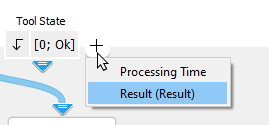
This result returns the duration of the most recent execution of the tool in milliseconds. The result is provided as additional result. Therefore, it is hidden by default but it can be displayed via the button beside the tool results. For more information see the section Processing Time in the tool reference overview.
Application Examples
This tool is used in the following MERLIC Vision App examples:
- adapt_brightness_for_measuring.mvapp
- check_correct_filling_on_3d_height_images.mvapp
- measure_distance_to_center_led.mvapp


