Renaming Tools, Parameters, and Results
Renaming MERLIC tools and their connectors can help clarify specific tasks and use cases within your MERLIC Vision App (MVApp), enhancing the overall clarity and organization of your workflow.
You can use almost all common types of characters for the names provided they adhere to the naming conventions described in the last section.
Renaming Tools
You can rename a MERLIC tool in the Tool Workspace at the respective tool board and in the Tool Flow panel. After renaming, both the default name and the user given name will be displayed at the tool board and in the Tool Flow panel to ensure the tool can be easily identified.
Renaming Tools at the Tool Board
- Select the tool to be renamed.
- In the tool board, click on the tool name.
- Enter the new tool name into the respective text field. If you only enter a number, it will be appended to the end of the default name instead.
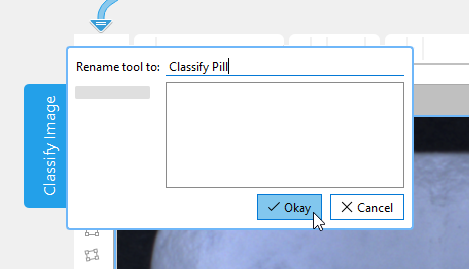
- Confirm your changes.
Renaming Tools in the Tool Flow
- In the Tool Flow panel, right-click on the tool to be renamed and select "
 Rename". Alternatively, you can select the tool and use the keyboard shortcut F2.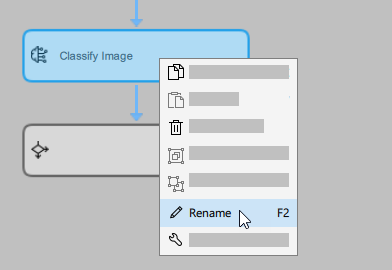
- Enter the new tool name into the text field. If you only enter a number, it will be appended to the end of the default name instead.
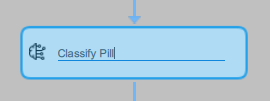
- Press Enter to confirm your changes.
Renaming Tool Parameters and Results
- Select the respective tool.
- In the tool board, click on the name of the tool parameter or tool result to be renamed.
- Enter the new name into the text field. If you only enter a number, it will be appended to the end of the default name instead.
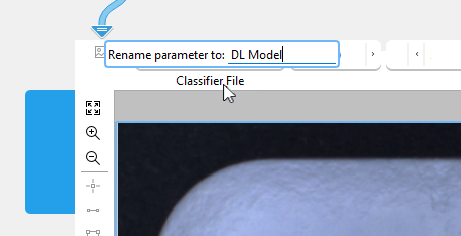
- Press Enter or click outside the dialog to confirm your changes.
After renaming, only the new name will be displayed at the tool board. If you want to check the default name of a parameter or result, hover the mouse pointer over the respective connector. MERLIC will display a tooltip which contains additional information on the name and semantic type.
When connecting the parameter or result in the MERLIC Creator or in the MERLIC Designer, both the default name and the user given name will be displayed.
Restoring the Default Name
To restore the default name of a tool, a tool parameter, or tool result, proceed as follows:
- Click on the respective name at the tool board or in the Tool Flow panel.
- Remove the user given name in the text field.
- Confirm your changes.
Naming Conventions
For the tools Branch on Condition and Evaluate Expression, some restrictions apply when renaming the tool parameters and results:
- The following characters are not allowed in the names of tool parameters and results:
Copy
][ ! " # $ % & ' ( ) * + , . / \ : ; < > = ? @ ^ ` { } | ~ -
- The names of the tool parameters and results may not start with the following characters:
- Double underscore, for example, "__Parameter"
- Digit, for example, "1_Parameter"
- Names that represent reserved identifiers, for example, operations in the expression, are not allowed as names for the tool parameters and results.
 List of reserved identifiers
abs acos and asin assign assign_at atan atan2 band bnot bor break bxor case catch ceil chr chrt comment continue cos cosh cumul default deg deviation else elseif endfor endif endswitch endtry endwhile environment exit exp export_def fabs false find floor fmod for gen_tuple_const global HNULL H_MSG_FAIL H_MSG_FALSE H_MSG_TRUE H_MSG_VOID H_TYPE_ANY H_TYPE_HANDLE H_TYPE_INT H_TYPE_MIXED H_TYPE_REAL H_TYPE_STRING if ifelse insert int inverse is_handle is_handle_elem is_int is_int_elem is_mixed is_number is_real is_real_elem is_string is_string_elem is_valid_handle ldexp log log10 lsh max max2 mean median min min2 not or ord ords par_join par_start pow rad rand real regexp_match regexp_replace regexp_select regexp_test remove repeat replace return round rsh select_mask select_rank sem_type sem_type_elem sgn sin sinh sort sort_index split sqrt stop strchr strlen strrchr strrstr strstr subset sum switch tan tanh throw true try type type_elem uniq until while xor


