Working with Connections
MERLIC uses data connections to transfer results and other parameter values from one tool to another via their data connectors. Likewise trigger connections are used to send triggers.
All connectors from a previous tool can be connected to an appropriate result with compatible semantic types and value ranges.
The data connections between an image parameter and an image result from a previous tool in the Tool Flow are created automatically whenever a tool is inserted but not when a copied tool is pasted. MERLIC checks whether a result of a previous tool represents an image and if the inserted tool contains an image connector. If this is the case, the image result of the previous tool is connected automatically to the image connector of the inserted tool.
Connections between tool parameters and results with a semantic type The semantic type specifies the data class of a parameter or result, i.e., the kind of data a parameter or result contains. Some of the most important semantic types are iconic data (images, regions, regions of interest (ROIs), contours), elementary data (numbers, integers, real, strings), geometric data (angles, coordinates), and handles. other than an image must be established manually. Such manually established connections are even necessary in case there is no default value for the parameter, like e.g., for parameters of the semantic types The semantic type specifies the data class of a parameter or result, i.e., the kind of data a parameter or result contains. Some of the most important semantic types are iconic data (images, regions, regions of interest (ROIs), contours), elementary data (numbers, integers, real, strings), geometric data (angles, coordinates), and handles. "Contour".
A tool result can be connected only to the tool parameter of a subsequent tool. It is not allowed to create a connection from a tool result to a connector of a previous tool or to a tool in the same row in the Tool Flow panel.
Conversely, a tool parameter can be connected only to a tool result of a previous tool. It is not allowed to create a connection from a tool parameter to a result of a subsequent tool or to a tool in the same row in the Tool Flow panel.
Creating a Connection
You can create a connection to an other tool in the following ways:
 Drag-and-drop
- Drag the arrow of the result connector to the drop target for connections. The drop target is located at the bottom of the Tool Workspace and is highlighted as soon as the mouse is positioned over the arrow handle.
- Select the tool and connector to which you want to connect.
- Click on the selected connector to create the connection.
To establish a trigger connection, perform the same steps with the respective output trigger and input trigger of the target tool.
The following animation shows how to create a connection via drag-and-drop.
Using the context menu
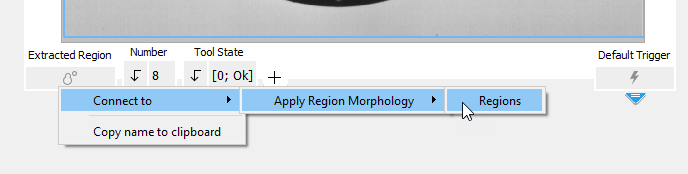
- Right-click on the connector of a result.
- Click on the menu entry "Connect to" to open the list of available tools for the connection.
- Select the tool and connector to which you want to connect.
- Click on the selected connector to create the connection.
You can also connect a tool parameter to a result of a previous tool using the same procedure. To establish a trigger connection, perform the same steps with the respective output trigger and input trigger of the target tool.
Deleting a Connection
You can delete a connection to an other tool in the following ways:
Disconnecting the link
- Drag the connection from the connected connector until it is visualized in a transparent color.
- Release the mouse button to delete the connection.
To delete a trigger connection, perform the same steps with the connection of the respective input trigger of the target tool.
The following animation shows how to delete a connection via drag-and-drop.
Using the context menu
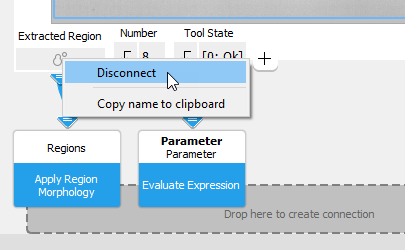
- Right-click on the connector and use "Disconnect". This works for tool parameters as well as tool results.
- If a connector is connected to multiple connectors, you can either disconnect all connections, or choose the connection you want to disconnect, as shown in the image below.
To delete a trigger connection, perform the same steps at the connector of the respective input or output trigger.
Using the keyboard
- Click on the arrow that represents the connection between two tools.
- Press the Del key to delete the connection.
To delete a trigger connection, perform the same steps with the connection between an output trigger and an input trigger.


