Selecting Tools
The selection of a tool enables you to display the tool in the Tool Workspace in order to configure its parameters. The selection can also be used for other operations within the Tool Flow panel such as copy, paste, and delete.
There are several ways to select one or more tools.
How to Select a Tool in the Tool Flow Panel
- Click on the tool in the Tool Flow panel. The tool is now selected and displayed in the Tool Workspace.
- Press and hold the left mouse key and move the mouse pointer over the Tool Flow panel to draw a rectangle over the tool you want to select.
- Use the arrow keys to select a tool in the Tool Flow panel. The navigation with the arrow keys refers to the tool that is currently selected.
Key
Selected tool
Arrow up
The next tool above will be selected.
Arrow down
The next tool below will be selected.
Arrow left
The next tool on the left will be selected. If there is no tool at this position, the next tool below will be selected.
Arrow right
The next tool on the right will be selected. If there is no tool at this position, the next tool below will be selected.
 Example
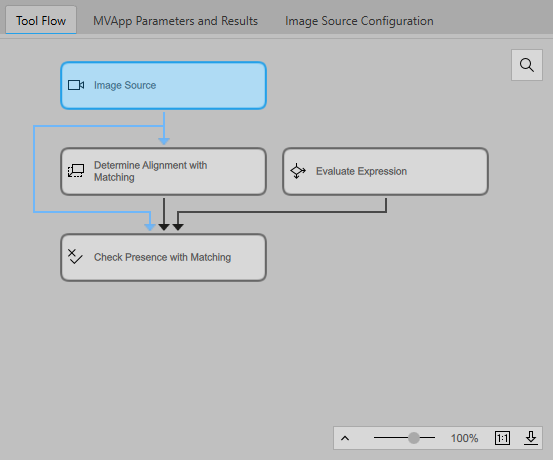
The tool Image Source is selected. It automatically becomes the focus tool The focus tool is the editable tool shown in the Tool Workspace. It also serves as reference position when several tools are moved within the Tool Flow panel. and is displayed in the Tool Workspace.
How to Select a Tool in the Tool Workspace
If the tool in the Tool Workspace is connected to other tools, you can double click on one of the connected tools on the top or bottom of the Tool Workspace. The tool is now selected and displayed in the Tool Workspace.
How to Select Multiple Tools in the Tool Flow Panel
- Press and hold the left mouse key and move the mouse pointer over the Tool Flow panel to draw a rectangle over the tools you want to select.
- Press the Ctrl key and click on the desired tools in the Tool Flow panel. The tools are now selected and the Tool Workspace displays the focus tool The focus tool is the editable tool shown in the Tool Workspace. It also serves as reference position when several tools are moved within the Tool Flow panel., i.e., the tool with the light blue background.
- Click with the left mouse button on two tools in the Tool Flow while holding the Shift key pressed. The two clicked tools define a rectangle in the Tool Flow and all tools within this rectangle are selected. The Tool Workspace displays the focus tool The focus tool is the editable tool shown in the Tool Workspace. It also serves as reference position when several tools are moved within the Tool Flow panel., i.e., the tool with the light blue background.
Example
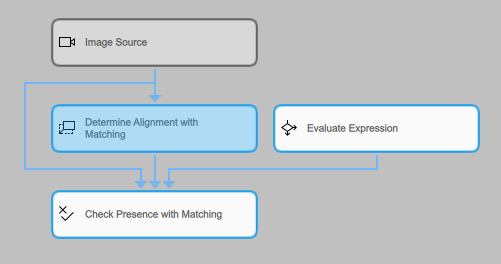
Three tools of the Tool Flow are selected in the Tool Flow panel. The tool Determine Alignment with Matching is the focus tool The focus tool is the editable tool shown in the Tool Workspace. It also serves as reference position when several tools are moved within the Tool Flow panel., thus it is in focus and is displayed in the Tool Workspace.