Adding Notes
If you want to add a description for a tool or a tool group, you can add a note at the respective tool board or group in the Tool Workspace.
The following section refers to adding a note to a tool. However, in case of a tool group, you can add a note in the same way.
- Select the tool to display its tool board in the Tool Workspace.
- Click on the name of the tool. A new dialog appears in which you can rename the tool and add a tool note.
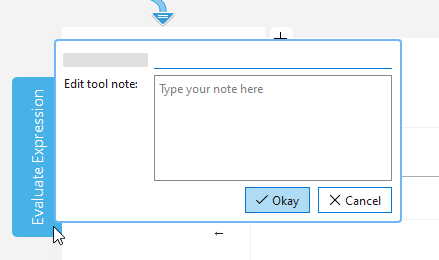
- Add your tool note to the respective input field. To add a new line in your text, you can use the keyboard shortcut Shift + Enter.
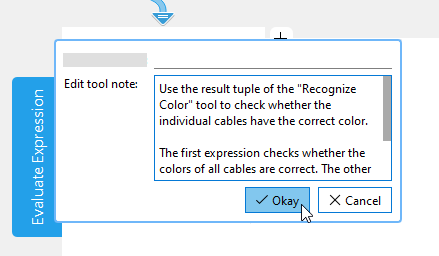
- Confirm your changes with a click on "Okay" or press Enter.
- The tool board now shows an icon below the tool name indicating that a tool note is available.
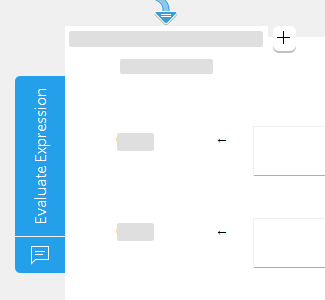
To edit an existing tool note, simply click on the tool name or the note icon to open the dialog again.
Displaying Available Notes
If a note is available for a tool or a tool group, you can display it at the tool board or in the Tool Flow panel.
On the tool board, hover the mouse pointer over the icon below the tool name to display a tooltip with the tool note. When clicking on the icon, the dialog opens and you can edit or delete the note.
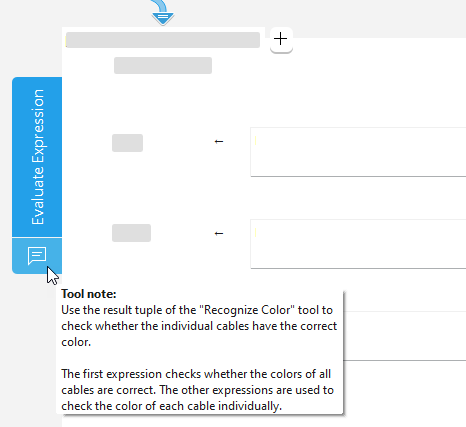
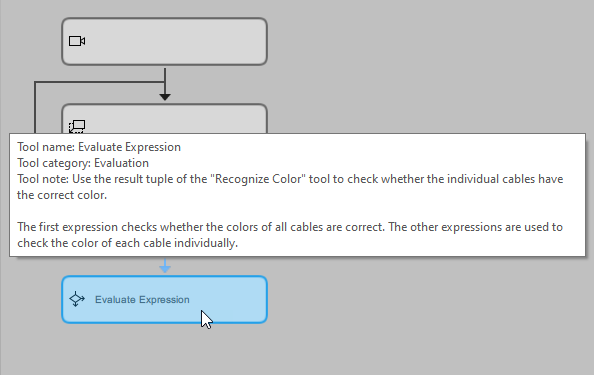
In the Tool Flow panel, hover the mouse pointer over the tool to display a tooltip with information on the tool. Among others, you can see the tool note that has been added.