Evaluate Expression
Use this tool if you want to evaluate expressions, i.e., to check results of your application. The expressions can contain numeric and string results of previous tools or values that have been specified manually. You may use a wide range of expressions for the evaluation. See the section Expression for a detailed description of possible expressions.
In contrast to other MERLIC tools, this tool has no default parameters when it is inserted. If you want to use parameters in your expressions, you need to add them manually to the tool. See the section Adding Parameters for more information.
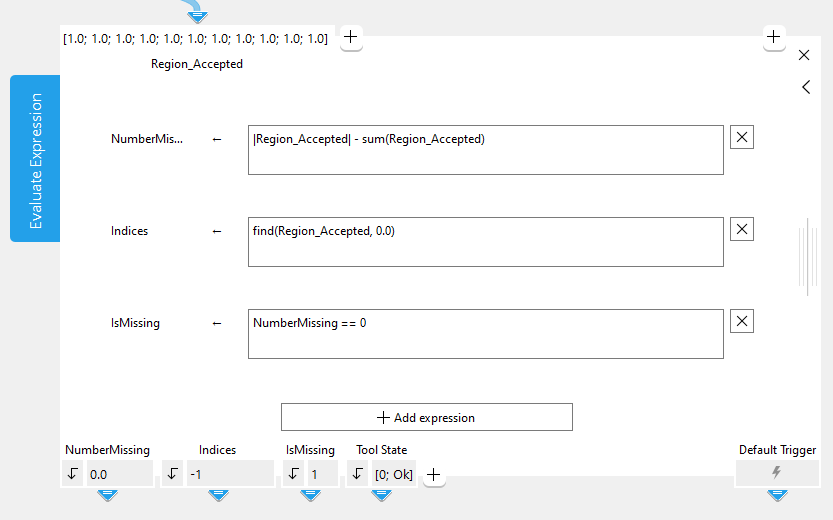
Instead of a graphics window, this tool shows input fields in which the expressions can be defined. The results of the evaluated expressions are returned at the bottom of the tool. The tool has no default parameters when it is inserted.
Entering an Expression
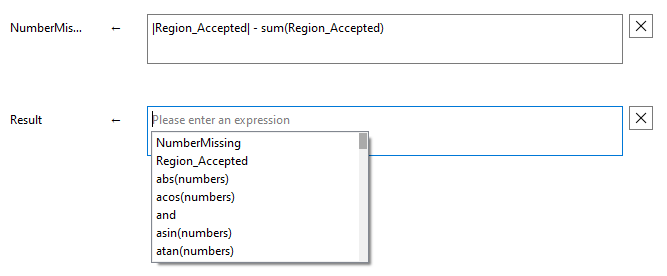
When you type into the expression input field, an auto-completion list with possible functions and operators that match your entry pops up. The list also contains manually added parameters and former defined results. This means that you can use the result of previous expressions in this tool in your following expressions in this tool, e.g., the result of your first expression in your third expression. However, it is not possible to use the result of a latter expression in a previous one, e.g., the result of your third expression in your first expression.
To browse directly from the entire list, open the pop-up manually with the shortcut CTRL+Space. Find out more about the possible functions and operators in the section Types of Operations.
In this image you can see the pop-up list with all possible functions and operators after it was opened manually via CTRL+Space. At the top of the list you can see the result of the first expression, "NumberMissing", and the parameter "Region_Accepted".
Adding, Removing, and Moving Expressions
You can manually add and remove additional expressions. To add an expression, click the " Add expression" button at the bottom of the Tool Workspace. You can remove an expression by clicking the
  button on the right side of the input field.
Alternatively, right-clicking on the result on the bottom of the Tool Workspace also allows you to remove the result and its respective expression by selecting "Remove".
You can use drag-and-drop to move the expressions you have added to change the order of your expressions, e.g., so you can use the result of a previous expression in a following expression. To do so, select the expression you wish to move, drag it to the desired position, and drop it at the new place.
For each new expression, a new result is created and returned at the bottom of the tool. Optionally rename the result by double-clicking on the result name at the bottom of the tool. To get information about the allowed naming conventions for tool parameters and results see the topic Renaming Tools, Parameters, and Results.
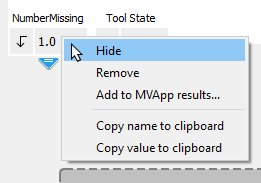
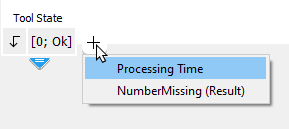
You can hide results, e.g., if there are intermediate results that are not connected to any other tool and that are only used in an expression further down the Tool Flow. Right-click on the result you wish to hide and select "Hide". To show a hidden result, use the button on the right side of the results.
Parameters
This tool has no default parameters. Thus, there are no parameters displayed, when the tool is inserted. If you want to use a parameter value in your expression, you can either use the result value of a previous tool or you can define a new parameter for the tool.
Supported Semantic Types
This tool supports the following semantic types for the parameters:
- any
- double
- long
- string
Although not all semantic types available in MERLIC are supported for this tool, you can still use any numeric or string result of a previous tool, even if the semantic type of this result is not supported, e.g., "Tool State". However, if a connection to such a result is created, the semantic type of the respective new parameter is converted and set to "any".
Since the semantic type "long" represents integers but with a larger value range, we will still refer to them as integers in the following description.
Adding Parameters
Using a Result of a Previous Tool as Parameter
To use a result of a previous tool in your expression, you need to connect the result to the "Evaluate Expression" tool.
- Go to the previous tool whose result you want to use as a parameter in the "Evaluate Expression" tool.
- Drag the arrow of the connection from the desired tool result to the drop target for connections. Alternatively, you may open the context menu and click on the menu entry "Connect to".
- Select the tool "Evaluate Expression" and click on the menu entry "< add connection >".
The connected result is instantly added as a new parameter for the "Evaluate Expression" tool. The name and semantic type of the parameter is automatically adopted from the connected result. In case the semantic type of the connected result value is not supported in this tool, it is automatically set to "any" for the new parameter.
Alternatively, you may also define a new parameter at the tool as described below and then connect the new parameter to the result of a previous tool.
Defining a New Parameter
To define a new parameter, you have to add a new connector and define the parameter settings.
- Click on the button on the top left of the tool board. The dialog window for defining the parameter settings opens.
- Select the semantic type for the new parameter in the dialog window.
- Optionally define the minimum and maximum value for your new parameter.
- Click "Ok" to confirm your settings. The new parameter is instantly added with a default name.
- Optionally rename the parameter by double-clicking on the parameter name. To get information about the allowed naming conventions for tool parameters and results see the chapter Renaming Tools, Parameters, and Results.
- Define the value of the new parameter at the connector.
Once the semantic type and value range have been saved for a parameter, it is not possible to change these settings again. If you need to adjust the semantic type or the value range of your parameter, you have to add another new parameter with the desired settings.
Example
The following example video shows how to use a result of a previous tool and a newly defined parameter value in the expression.
Expressions
The expressions to be evaluated must be defined within the input field of the tool board. As long as no expression has been defined yet or if an invalid expression has been defined, MERLIC shows an error at the Tool Board and the Tool Flow panel. However, this error is only thrown due to a missing or wrong expression. It does not indicate a critical workspace error. Therefore, the "Tool State" result still returns "[0; OK]" in this case.
The expressions can be applied to numeric values, string values, and also mixed tuples. To use a value of a tool parameter for the evaluation, type the name of the parameter into the input field of the expression. It is also possible to define an expression without any parameter.
Direction of the Evaluation
The evaluation of the expressions is usually done from left to right. However, if parentheses are used in the expressions, they can change the order of evaluation.
Types of Operations
Operations are normally described assuming atomic tuples A tuple is a list of elements, e.g., numeric values and strings., i.e., tuples of length 1. If the tuple contains more than one element, most operators work as follows:
- If one of the tuples is of length one, all elements of the other tuples are combined with that single value for the chosen operation.
- If both tuples have a length greater than one, both tuples must have the same length (otherwise an error occurs). In this case, the selected operation is applied to all elements with the same index. The length of the resulting tuples is identical to the length of the input tuples.
- If one of the tuples is of length 0 ([]), an error occurs.
In the following, we describe the different types of operations that can be used in an expression.
 Basic tuple operations
A basic tuple operation may be selecting one or more values, combining tuples (concatenation), or getting the number of elements. See the following table for operations on tuples containing control data.
|
Operation |
Description |
|---|---|
|
tuple[index] |
Select the tuple element with the specified index number. 0 <= index < |tuple| |
|
tuple[index_1:index_2] |
Select tuple elements from position index_1 to index_2. |
|
|tuple| |
Get number of elements of tuple. |
|
[tuple_1,tuple_2] |
Concatenate tuple_1 and tuple_2. |
|
[integer_1:integer_2] |
Generate a sequence of values from integer_1 to integer_2 with an increment value of 1. |
|
[integer_1:integer_2:integer_3] |
Generate a sequence of values from integer_1 to integer_3 with an increment value of integer_2. |
|
find(tuple_1,tuple_2) |
Get indices of all occurrences of tuple_2 within tuple_1 (or −1 if no match is found). |
|
gen_tuple_const(length,value) |
Generate a new tuple of predefined length in which each element has the same value. The length must be defined as integer number. |
|
remove(tuple,index) |
Remove elements with the specified index number from tuple. |
|
select_mask(tuple_1,tuple_2) |
Select all elements from tuple_1 where the corresponding mask value in tuple_2 is greater than 0. |
|
subset(tuple,index) |
Select tuple elements with the specified index number. You can define either a single index number or a tuple of indeces. |
|
uniq(tuple) |
Discard all but one of the successive identical elements from tuple. |
The concatenation accepts one or more variables or constants as input. They are all listed between the brackets, separated by commas. The result again is a tuple. Please note the following: [[tuple]] = [tuple] = tuple.
|tuple| returns the number of elements of a tuple. The indices of elements range from zero to the number of elements minus one, i.e., |tuple|−1. Therefore, the selection index has to be within this range.
Examples
|
Example tuple |
Example operation |
|---|---|
|
tuple = [7,8,9] |
tuple[1] = 8 |
|
tuple = [1,2,3,7,8,9] |
tuple[2:4] = [3;7;8] |
|
tuple = [7,8,9] |
|tuple| = 3 |
|
tuple_1 = [1,2,3] tuple_2 = [7,8,9] |
[0,tuple_1,tuple_2,27,89] = [0;1;2;3;7;8;9;27;89] |
|
integer_1 = 7 integer_2 = 13 |
[integer_1:integer_2] = [7;8;9;10;11;12;13] |
|
integer_1 = 1 integer_2 = 2 integer_3 = 10 |
[integer_1:integer_2:integer_3] = [1;3;5;7;9] |
|
tuple_1 = [1,2,3,7,8,9] tuple_2 = [3,7] tuple_3 = [7,3] |
find(tuple_1, tuple_2) = 2 find(tuple_1, tuple_3) = -1 |
|
length = 4 value = 23 |
gen_tuple_const(4,23) = [23;23;23;23] |
|
tuple = [1,2,3,7,8,9] |
remove(tuple, [0,4]) = [2;3;7;9] |
|
tuple_1 = [0,1,2,3,4,5] tuple_2 = [1,1,0,1,0,0] |
select_mask(tuple_1, tuple_2) = [0;1;3] |
|
tuple = [2,4,8,16,16,32] |
subset(tuple, [0,2,4]) = [2;8;16] |
|
tuple = [1,1,0,1,0,0] |
uniq(tuple) = [1;0;1;0] |
Basic arithmetic operations
The following basic arithmetic operations are available.
|
Operation |
Description |
|---|---|
|
number_1 / number_2 |
Division |
|
number_1 * number_2 |
Multiplication |
|
number_1 % number_2 |
Modulus |
|
number_1 + number_2 |
Addition |
|
number_1 - number_2 |
Subtraction |
|
-number_1 |
Negation |
Modulus can be applied to integers, all other operations can be applied to either integer numbers or real numbers. If at least one operand is of type real, the result will be a real number as well.
Examples for arithmetic operations
|
Expression |
Result |
|---|---|
|
4 / 3 |
1 |
|
4 / 3.0 |
1.3333333 |
|
(4 / 3) * 2.0 |
2.0 |
Bit operations
This following operation for bit processing of numbers are available. The operands have to be integers.
|
Operation |
Description |
|---|---|
|
lsh (integer_1,integer_2) |
Left shift. The result is a bitwise left shift of integer_1 that is applied integer_2 times. |
|
rsh (integer_1,integer_2) |
Right shift. The result is a bitwise right shift of integer_1 that is applied integer_2 times. |
|
integer_1 band integer_2 |
Bitwise and |
|
integer_1 bxor integer_2 |
Bitwise xor |
|
integer_1 bor integer_2 |
Bitwise or |
|
bnot integer |
Bitwise complement |
For the operations lsh and rsh the result is undefined if the second operand has a negative value or the value is larger than 32.
String operations
There are several string operations available to modify, select, and combine strings. Furthermore, some operations allow to convert integer and real numbers to strings.
|
Operation |
Description |
|---|---|
|
value $ string |
Convert value using specification string. See the section $ (String Conversion) for more information. |
|
value_1 + value_2 |
Concatenate value_1 and value_2. At least one of the values has to be a string. |
|
strchr(string, char) |
Search the first occurrence of one of the characters char in string. |
|
strrchr(string, char) |
Search the last occurrence of one of the characters char in string (reverse). |
|
strstr(string_1, string_2) |
Search the first occurrence of substring string_2 in string_1. |
|
strrstr(string_1, string_2) |
Search the last occurrence of substring string_2 in string_1 (reverse). |
|
strlen(string) |
Return the length of string. |
|
string{index} |
Select the character at position index. 0 <= index <= strlen(string)-1. |
|
string{index_1:index2} |
Select the substring from position index_1 to position index_2. |
|
split(string_1, string_2) |
Split string_1 in substrings at string_2. |
|
regexp_match(string_1, string_2) |
Extract substrings of string_1 matching the regular expression string_2. |
|
regexp_replace(string_1, regex, string_2) |
Replace the first substring of string_1 matching the regular expression regex with string_2. |
|
regexp_select(string, regex) |
Select tuple elements from string matching the regular expression regex. |
|
regexp_test(string, regex) |
Return how many tuple elements in string match the regular expression regex. |
Examples|
Example string |
Example Operation |
|---|---|
|
string = '0,7f' |
4 $ 'string' = "4.0000000" |
|
value_1 = 'good' value_2 = 'morning' |
value_1 + value_2 = 'goodmorning' |
|
string = 'exemplary' |
strchr(string, 'xyz') = 1 |
|
string = 'exemplary' |
strrchr(string, 'xyz') = 8 |
|
string_1 = 'mississippi' string_2 = 'ss' |
strstr(string_1, string2) = 2 |
|
string_1 = 'mississippi' string_2 = 'ss' |
strrstr(string_1, string2) = 5 |
|
string = 'incomprehensibilities' |
strlen(string) = 21 |
|
string = 'abaaabbaababaa' |
string{7} = "a" |
|
string = 'abaaabbaababaa' |
string{7:10} = "aaba" |
|
string_1 = 'appendix.pdf' string_2 = '.' |
split(string_1, string_2) = [appendix;pdf] or split(string_1, 'pp') = [a;endix.;df] |
|
string_1 = ['XXS001.JPG', 'XXS002.JPG', 'XXS003.JPG'] string_2 = 'XXS(.*)' |
regexp_match(string_1, string_2) = [001.JPG, 002.JPG, 003.JPG] |
|
string_1 = 'goodmorning' regex = 'g' string_2 = 'G' |
regexp_replace(string_1, regex, string_2) = "Goodmorning" |
|
string = ['img1.jpg', 'img2.png'; 'appendix.pdf', my_dir'] regex = '.(jpg|png)' |
regexp_select(string, regex) = ['img1.jpg', 'img2.png'] |
|
string = ['img1.jpg', 'img1.png', 'img2.jpg', 'img2.png'] regex = '(.png)' |
regexp_test(string, regex) = 2 |
Please see also the more detailed description of the individual string operations.
$ (String Conversion)
$ converts numbers to strings or modifies strings. The operand on the left of $ is the number that is converted. The operand on the right of $ specifies the conversion. It is comparable to the format string of the printf() function in the C programming language. The format string consists of the following four parts:
<flags><width>.<precision><conversion>
or as a regular expression:
[-+ #]?([0-9]+)?(\.[0-9]*)?[doxXfeEgGsb]?
The regular expression roughly translates to zero or more of the characters in the first bracket pair followed by zero or more digits, optionally followed by a dot which may be followed by digits followed by a conversion character from the last bracket pair.
Examples for string conversion $
|
Expression |
Result |
|---|---|
|
23 $ '10.2f' |
"23.00" → ".....23.00" |
|
23 $ '-10.2f' |
"23.0 " → "23.00....." |
|
4 $ '.7f' |
"4.0000000" |
|
1234.56789 $ '+10.3f' |
" +1234.568" |
|
255 $ 'x' |
"ff" |
|
255 $ 'X' |
"FF" |
|
0xff $ '.5d' |
"00255" |
|
'total' $ '10s' |
"total" → ".....total" |
|
'total' $ '-10s' |
"total " → "total....." |
|
'total' $ '10.3' |
"tot"→ ".......tot" |
For a better understanding the results with additional blanks are listed a second time with "." representing the additional blanks before or after the input string, e.g., in the string "total....." the last 5 dots represent blanks.
The individual parts of the format string are the following:
flags:
Zero or more flags, in any order, which modify the meaning of the conversion specification. Flags may consist of the following characters:
Flag
Description
-
The result of the conversion is left justified within the field.
+
The result of a signed conversion always begins with a sign, i.e., + or -.
Space
If the first character of a signed conversion is not a sign, a space character is prefixed to the result.
#
The value is to be converted to an "alternate form".
For d and s (see below) conversions, this flag has no effect.
For o conversion (see below), it increases the precision to force the first digit of the result to be a zero.
For x or X conversion (see below), a non-zero result has 0x or 0X prefixed to it.
For e, E, f, g, and G conversions, the result always contains a radix character, even if no digits follow the radix character.
For g and G conversions, trailing zeros are not removed from the result, contrary to usual behavior.
width:
An optional string of decimal digits to specify a minimum field width. For an output field, if the converted value has fewer characters than the field width, it is padded on the left (or right, if the left-adjustment flag - has been given) to the field width.
precision:
The precision specifies the minimum number of digits to appear for integer conversions (the field is padded with leading zeros), the number of digits to appear after the radix character for the e and f conversions, the maximum number of significant digits for the g conversion, or the maximum number of characters to be printed from a string conversion. The precision takes the form of a period . followed by a decimal digit string. A null digit string is treated as a zero.
conversion:
A conversion character indicates the type of conversion to be applied:
Conversion character
Description
d, o, x, X
The integer argument is printed in signed decimal (d), unsigned octal (o), or unsigned hexadecimal notation (x and X).
The x conversion uses the numbers and lower-case letters 0123456789abcdef, and the X conversion uses the numbers and upper-case letters 0123456789ABCDEF. The precision component of the argument specifies the minimum number of digits to appear.
If the value being converted can be represented in fewer digits than the specified minimum, it is expanded with leading zeroes. The default precision is 1. The result of converting a zero value with a precision of 0 is no characters.
f
The floating-point number argument is printed in decimal notation in the style [-]ddd.ddd, where the number of digits after the radix character, ., is equal to the precision specification.
If the precision is omitted from the argument, six digits are output; if the precision is explicitly 0, no radix appears.
e, E
The floating-point-number argument is printed in the style [-]d.ddde+dd, where there is one digit before the radix character, and the number of digits after it is equal to the precision.
When the precision is missing, six digits are produced; if the precision is 0, no radix character appears.
The E conversion character produces a number with E introducing the exponent instead of e. The exponent always contains at least two digits. However, if the value to be printed requires an exponent greater than two digits, additional exponent digits are printed as necessary.
g, G
he floating-point-number argument is printed in style f or e (or in style E in the case of a G conversion character), with the precision specifying the number of significant digits.
The style used depends on the value converted; style e is used only if the exponent resulting from the conversion is less than −4 or greater than or equal to the precision. Trailing zeros are removed from the result. A radix character appears only if it is followed by a digit.
s
The argument is taken to be a string, and characters from the string are printed until the end of the string or the number of characters indicated by the precision specification of the argument is reached.
If the precision is omitted from the argument, it is interpreted as infinite and all characters up to the end of the string are printed.
In no case does a nonexistent or insufficient field width cause truncation of a field. If the result of a conversion is wider than the field width, the field is simply expanded to contain the conversion result.
+ (String Concatenation)
The string concatenation (+) can be applied in combination with strings or all numerical types. If necessary, the operands are first transformed into strings (according to their standard representation). At least one of the operands has to be already a string so that the operator can act as a string concatenator.
Example for string concatenation
|
Expression |
Result |
|---|---|
|
'Name'+Counter+'.png' |
e.g., "Name2.png" |
In the example a file name (e.g., "Name2.png") is generated. For this purpose two string constants ("Name" and ".png") and an integer value (the loop-index Counter) are concatenated.
str(r)chr
strchr(string,char) returns the index of the first occurrence of one of the characters char in string and strrchr(string,char) returns the index of the last occurrence of one of the characters char in string. If none of the characters occur in string, −1 is returned. string may be a single string or a tuple of strings.
Examples for str(r)chr
|
Expression |
Result |
|---|---|
|
strchr('abaaab','a') |
0 |
|
strrchr('abaaab','a') |
4 |
str(r)str
strstr(string_1,string_2) returns the index of the first occurrence of string_2 in string_1 and strrstr(string_1,string_2) returns the index of the last occurrence of string_2 in string_1. If string_2 does not occur in string_1, −1 is returned. string_1 may be a single string or a tuple of strings.
Examples for str(r)str
|
Expression |
Result |
|---|---|
|
strstr('abaaab','ab') |
0 |
|
strrstr('abaaab','ab') |
4 |
strlen
strlen(string) returns the number of characters in string.
Example for strlen
|
Expression |
Result |
|---|---|
|
strlen('abaaab') |
6 |
{}
string{index} selects a single character (specified by index position) from string. The index ranges from zero to the length of string minus 1. The result of the operator is a string of length one.
string{index_1:index_2} returns all characters from the first specified index position (index_1) up to the second specified position (index_2) in s as a string. The index ranges from zero to the length of string minus 1.
Examples for {}
|
Expression |
Result |
|---|---|
|
'abaaab'{1} |
"b" |
|
'abaaab'{1:5} |
"baab" |
split
split(string_1,string_2) divides string_1 into single substrings. String_1 is split at those positions where it contains a character from string_2.
Example for split
|
Expression |
Result |
|---|---|
|
split('/usr/image:/usr/proj/image',':') |
["/usr/image";"/usr/proj/image"] |
The string is splitted at the character ":" in two substrings. The substrings are returned in a tuple.
regexp_match
regexp_match(string_1,string_2) searches for elements of the tuple string_1 that match the regular expression string_2. It returns a tuple with the same size as the input tuple. The resulting tuple contains the matching results for each tuple element of the input tuple. For a successful match the matching substring is returned. Otherwise, an empty string is returned.
Examples for regexp_match
|
Expression |
Result |
|---|---|
|
regexp_match('abba','b+a*') |
"bba" |
|
regexp_match(['img123','img124'],'img(.*)') |
["123";"124"] |
regexp_replace
regexp_replace(string_1,regex,string_2) replaces substrings in string_1 that match the regular expression regex with the string given in string_2. By default, only the first matching substring of each element in string_1 is replaced. To replace all occurrences, the option 'replace_all' has to be set in regex.
Examples for regexp_replace
|
Expression |
Result |
|---|---|
|
regexp_replace('abaaab','a','b') |
"bbaaab" |
|
regexp_replace('abaaab',['a','replace_all'],'b') |
"bbbbbb" |
regexp_select
regexp_select(string_1,regex) returns only the elements of the tuple string_1 that match the regular expression regex. In contrast to regexp_match, the original tuple elements instead of the matching substrings are returned. Tuple elements that do not match the regular expression are discarded. Additionally, regexp_select supports the option 'invert_match', which causes those input strings to be selected which do not match the regular expression.
Examples for regexp_select
|
Expression |
Result |
|---|---|
|
regexp_select(['mydir', 'a.png', 'b.txt', 'c.bmp', 'd.dat'], '.(bmp|png)') |
["a.png"; "c.bmp"] |
|
regexp_select(['mydir', 'a.png', 'b.txt', 'c.bmp', 'd.dat'], ['.(bmp|png)', 'invert_match']) |
["mydir"; "b.txt"; "d.dat"] |
regexp_test
regexp_test(string,regex) returns the number of elements of the tuple string that match the regular expression regex. Additionally, a short-hand notation of the operator is available, which is convenient in conditional expressions: string_1 =~ string_2
|
Expression |
Result |
|---|---|
|
regexp_test(['mydir','a.png','b.txt','c.bmp','d.dat'],'.(bmp|png)') |
2 |
|
['mydir','a.png','b.txt','c.bmp','d.dat'] =~ '.(bmp|png)' |
2 |
Comparison operations
The following comparison operations can be evaluated. They are also defined on tuples with an arbitrary number of elements. They always return boolean values.
|
Operation |
Description |
|---|---|
|
tuple_1 < tuple_2 |
Less than |
|
tuple_1 > tuple_2 |
Greater than |
|
tuple_1 <= tuple_2 |
Less or equal |
|
tuple_1 >= tuple_2 |
Greater or equal |
|
tuple_1 == tuple_2 ; tuple_1 = tuple_2 |
Equal |
|
tuple_1 != tuple_2 ; tuple_1 # tuple_2 |
Not equal |
tuple_1 == tuple_2 and tuple_1 != tuple_2 are defined on all types. Two tuples are equal (true), if they have the same length and all the data items on each index position are equal. If the operands have different types (integer and real), the integer values are first transformed into real numbers. String values cannot be mixed up with numbers, i.e., string values are considered to be not equal to values of other types.
Examples for the comparison of tuples
|
1st operand |
Operation |
2nd operand |
Result |
|---|---|---|---|
|
1 |
== |
1.0 |
1 |
|
[] |
== |
[] |
1 |
|
'' |
== |
[] |
0 |
|
[1,'2'] |
== |
[1,2] |
0 |
|
[1,2,3] |
== |
[1,2] |
0 |
|
[4711,'Hugo'] |
== |
[4711,'Hugo'] |
1 |
|
'Hugo' |
== |
'hugo' |
0 |
|
2 |
> |
1 |
1 |
|
2 |
> |
1.0 |
1 |
|
[5,4,1] |
> |
[5,4] |
1 |
|
[2,1] |
> |
[2,0] |
1 |
|
true |
> |
false |
1 |
|
'Hugo' |
< |
'hugo' |
1 |
The four comparison operations compute the lexicographic order of tuples. On equal index positions the types must be identical. However, values of type integer, real, and boolean are adapted automatically. The lexicographic order applies to strings, and the boolean false is considered to be smaller than the boolean true (false < true).
Elementwise Comparison Operations
These comparison operations compare the input tuples tuple_1 and tuple_2 elementwise.
|
Operation |
Description |
|---|---|
|
tuple_1 [<] tuple_2 |
Less than |
|
tuple_1 [>] tuple_2 |
Greater than |
|
tuple_1 [<=] tuple_2 |
Less or equal |
|
tuple_1 [>=] tuple_2 |
Greater or equal |
|
tuple_1 [==] tuple_2 ; tuple_1 [=] tuple_2 |
Equal |
|
tuple_1 [!=] tuple_2 ; tuple_1 [#] tuple_2 |
Not equal |
If both tuples have the same length, the corresponding elements of both tuples are compared. Otherwise, either tuple_1 or tuple_2 must have length 1. In this case, the comparison is performed for each element of the longer tuple with the single element of the other tuple. As a precondition for comparing the tuples elementwise two corresponding elements must either both be (integer or floating point) numbers or both be strings.
Examples for elementwise comparison of tuples
|
1st operand |
Operation |
2nd operand |
Result |
|---|---|---|---|
|
[1,2,3] |
[<] |
[3,2,1] |
[1;0;0] |
|
['a','b','c'] |
[==] |
'b' |
[0;1;0] |
|
['a','b','c'] |
[<] |
['b'] |
[1;0;0] |
Boolean operations
The following boolean operation can be evaluated.
|
Operation |
Description |
Result |
|---|---|---|
|
boolean_1 and boolean_2 |
Logical "and" |
1 (true) if both operands are true. |
|
boolean_1 xor boolean_2 |
Logical "xor" |
1 (true) if exactly one of both operands is true. |
|
boolean_1 or boolean_2 |
Logical "or" |
1 (true) if at least one of the operands is true. |
|
not boolean |
Negation |
1 (true) if the input is false, and 0 (false) if the input is true. |
The boolean operations and, xor, or, and not are defined only for tuples of length 1.
Trigonometric functions
The following trigonometric functions can be evaluated.
|
Function |
Description |
|---|---|
|
sin(numbers) |
Sine of numbers |
|
cos(numbers) |
Cosine of numbers |
|
tan(numbers) |
Tangent of numbers |
|
asin(numbers) |
Arc sine of numbers in the interval |
|
acos(numbers) |
Arc cosine of numbers in the interval |
|
atan(numbers) |
Arc tangent of numbers in the interval |
|
atan2(numbers_1,numbers_2) |
Arc tangent numbers_1/numbers_2 in the interval |
|
sinh(numbers) |
Hyperbolic sine of numbers |
|
cosh(numbers) |
Hyperbolic cosine of numbers |
|
tanh(numbers) |
Hyperbolic tangent of numbers |




All these functions work on tuples of numbers as arguments. The input can either be of type integer or real. However, the resulting type will be of type real. The functions are applied to all tuple values, and the resulting tuple has the same length as the input tuple. For atan2 the two input tuples have to be of equal length. For the trigonometric functions the angle is specified in radians.
Exponential functions
The following exponential functions can be evaluated.
|
Function |
Description |
|---|---|
|
exp(numbers) |
Exponential function |
|
log(numbers) |
Natural logarithm ln(numbers), numbers > 0 |
|
log10(numbers) |
Decadic logarithm, log10(numbers), numbers > 0 |
|
pow(numbers_1,numbers_2) |
|
|
ldexp(numbers_1,numbers_2) |
|



All these functions work on tuples of numbers as arguments. The input can either be of type integer or real. However, the resulting type will be of type real. The functions are applied to all tuple values and the resulting tuple has the same length as the input tuple. For pow and ldexp the two input tuples have to be of equal length.
Numerical functions
The following numerical functions can be evaluated.
|
Function |
Description |
|---|---|
|
abs(numbers) |
Return the absolute value that is of the same type as numbers (integer number or real number). |
|
ceil(numbers) |
Smallest integer value not smaller than numbers. This function works with integer and real. The resulting value is always of type real. |
|
cumul(tuple) |
Return the cumulative sums of the corresponding tuple elements. The resulting value will be of type real if at least one of the elements is of type real. If all elements are of type integer, the resulting value will also be of type integer. |
|
deg(numbers) |
Convert numbers from radians to degrees. This function works with integer and real.The resulting value is always of type real. |
|
deviation(tuple) |
Calculate the standard deviation of tuple. This function works with integer and real.The resulting value is always of type real. |
|
fabs(numbers) |
Absolute value of numbers (always real ). This function works with integer and real.The resulting value is always of type real. |
|
floor(numbers) |
Return the largest integer value not greater than numbers. This function works with integer and real. The resulting value is always of type real. |
|
fmod(numbers_1, numbers_2) |
Return the fractional part of numbers_1/numbers_2, with the same sign as numbers_1. This function works with integer and real.The resulting value is always of type real. |
|
int(numbers) |
Convert the real numbers to integer and truncate it. If numbers is already an integer, the input is returned. |
|
max(tuple) |
Select the maximum value of tuple. All values either have to be of type string or integer/real. It is not allowed to mix strings with numerical values. The resulting value will be of type real if at least one of the elements is of type real. If all elements are of type integer the resulting value will also be of type integer. |
|
max2(tuple_1, tuple_2) |
Select the elementwise maximum of tuple_1 and tuple_2. |
|
mean(tuple) |
Calculate the mean value of tuple. This function works with integer and real.The resulting value is always of type real. |
|
median(tuple) |
Calculate the median of tuple. The resulting value will be of type real if at least one of the elements is of type real. If all elements are of type integer, the resulting value will also be of type integer. |
|
min(tuple) |
Select the minimum value of tuple. All values either have to be of type string or integer/real. It is not allowed to mix strings with numerical values. The resulting value will be of type real if at least one of the elements is of type real. If all elements are of type integer the resulting value will also be of type integer. |
|
min2(tuple_1, tuple_2) |
Select the elementwise minimum of tuple_1 and tuple_2. |
|
rad(numbers) |
Convert numbers from degrees to radians. This function works with integer and real.The resulting value is always of type real. |
|
real(numbers) |
Convert the integer numbers to a real value. If numbers is already a real value, the input is returned. |
|
round(numbers) |
Convert the real numbers to an integer and round the value. |
|
select_rank(tuple, index) |
Return the element at the position of index of tuple. This function works for tuples containing int or real values. The index is of type integer. |
|
sgn(numbers) |
Sign of a value or elementwise sign of a tuple. |
|
sqrt(numbers) |
Calculate the square root of numbers. This function works with integer and real. The resulting value is always of type real. |
|
sum(tuple) |
Calculate the sum of all tuple elements or string concatenation. All values either have to be of type string or integer/real. It is not allowed to mix strings with numerical values. The resulting value will be of type real if at least one of the elements is of type real. If all elements are of type integer the resulting value will also be of type integer. If the values are strings, string concatenation will be used instead of addition. |
Miscellaneous functions
The following functions can also be evaluated:
|
Function |
Description |
|---|---|
|
chr(numbers) |
Convert an ASCII number to a character. |
|
chrt(integer) |
Convert a tuple of integers into a string. |
|
environment(string) |
Value of an environment variable.string is the name of the environment variable as string. |
|
inverse(tuple) |
Reverse the order of tuple values. If tuple is empty, of length 1, or if tuple contains only one value in all positions, e.g., [1,1,...,1], inverse is identical to sort. |
|
is_number(value) |
Test if value is a number. If value is of type integer, real, or a string that represents a number, 1 (true) is returned. |
|
number(value) |
Convert a string representing a number to an integer or real depending on the type of the number. Strings starting with 0x are interpreted as hexadecimal numbers, and strings starting with 0 (zero) as octal numbers, e.g., the string "20" is converted to the integer 20, "020" to 16, and "0x20" to 32. If called with a string that does not represent a number or with a variable of the type integer or real, number returns a copy of the input. |
|
ord(numbers) |
ASCII number of a character as an integer. |
|
ords(string) |
Convert a tuple of strings into a tuple of ASCII integers. |
|
rand(numbers) |
Create random numbers. |
|
sort(tuple) |
Sort tuple in ascending order, i.e., the first value of the resulting tuple is the smallest one. If the tuple is empty, of length 1, or if the tuple contains only one value in all positions, e.g., [1,1,...,1], sort is identical to inverse. |
|
sort_index(tuple) |
Sort tuple in ascending order but return the index positions of the sorted values. |
Operator precedence
The following table displays the precedence of the operations for control data (increasing from top to bottom). Some operations (like functions, | |, tuple[], etc.) are left out, because they mark their arguments clearly.
|
Precedence increasing from top to bottom |
|---|
|
band |
|
bxor bor |
|
and |
|
xor or |
|
!= == # = |
|
<= >= < > |
|
+ - |
|
/ * % |
|
- (unary minus) not |
|
$ |
Using Special Characters
This tool uses single quotation marks to represent strings. However, if special characters are used with single quotation marks, the characters are escaped with the backslash, e.g., '\t' is handled as a tab.
List of special characters
See the following table for the list of special characters.
|
Surrogate notation |
Description |
|---|---|
|
\n |
line feed |
|
\t |
horizontal tabulator |
|
\v |
vertical tabulator |
|
\b |
backspace |
|
\r |
carriage return |
|
\f |
form feed |
|
\a |
bell |
|
\\ |
backslash |
|
\' |
single quote |
Examples
The following examples shows the resulting values if a parameter is used with Parameter = \t:
|
Expression |
Result |
Description |
|---|---|---|
|
Parameter |
\t |
\t is handled as a string. |
|
strlen(Parameter) |
2 |
\t is handled as a string with two characters. |
|
strlen('\t') |
1 |
\t is handled as a tabulator character. |
|
'a\tb' |
a b |
\t is handled as a tabulator. |
|
ords(Parameter) |
[92;116] |
\t is handled as a string. |
|
ords('\t') |
9 |
\t is handled as a tabulator character. |
Results
Basic Results
Result:
This result returns the resulting values of the expression. As a default, this is the result of the first expression. Each additional expression returns an additional result.The semantic type of the result is set to "any".
Tool State:
"Tool State" returns information about the state of the tool and thus can be used for error handling. For more information, see Tool State Result
Additional Results
Processing Time:
This result returns the duration of the most recent execution of the tool in milliseconds. The result is provided as additional result. Therefore, it is hidden by default but it can be displayed via the button beside the tool results. For more information see the section Processing Time in the tool reference overview.
Application Examples
This tool is used in the following MERLIC Vision App examples:
- adapt_brightness_for_measuring.mvapp
- calibrate_for_ruler_changed_distance.mvapp
- calibrate_for_ruler_distorted.mvapp
- calibrate_for_ruler_simple.mvapp
- check_bent_leads.mvapp
- check_correct_filling_on_3d_height_images.mvapp
- check_pen_parts.mvapp
- check_presence_of_fuses.mvapp
- check_saw_angles.mvapp
- check_single_switches.mvapp
- classify_pills.mvapp
- count_bottles_with_deep_learning.mvapp
- demonstrate_evaluate_expression.mvapp
- detect_only_scratches_with_photometric_stereo.mvapp
- determine_circle_quality.mvapp
- evaluate_ecc_200_print_quality.mvapp
- find_and_count_screw_types.mvapp
- measure_distance_segment_circle_calibrated.mvapp
- measure_distance_to_center_led.mvapp
- recognize_color_of_cables.mvapp
- segment_pill_defects.mvapp
- segment_pills_by_shape.mvapp


