Get Paraxial Rectangle Properties
Use this tool to get properties of one or more paraxial rectangles.
Parameters
Basic Parameters
Image:
Use this parameter to set an image as background. This should usually be the image, the processed features e.g., contours or ROIs are based on. If no image is connected, the background will be black.
Rectangle:
This parameter defines the rectangular region(s) of interest (ROIs) for the processing. By default no ROI is defined. To define the paraxial rectangles to be checked, you either have to connect the parameter to an appropriate ROI result of a previous tool or you have to draw new ROIs into the image using the available ROI buttons.
Results
Basic Results
X Center:
This result contains the position of the center of the paraxial rectangle in x- direction. The result is returned in pixels.. If more than one paraxial rectangle was processed via the parameter "Rectangle", a tuple of values is returned.
Y Center:
This result contains the position of the center of the paraxial rectangle in y-direction. The result is returned in pixels.. If more than one paraxial rectangle was processed via the parameter "Rectangle", a tuple of values is returned.
Width:
This result contains the width of the paraxial rectangle in pixels. If more than one paraxial rectangle was processed via the parameter "Rectangle", a tuple of values is returned.
Height:
This result contains the height of the paraxial rectangle in pixels. If more than one paraxial rectangle was processed via the parameter "Rectangle", a tuple of values is returned.
Area:
This result contains the area of the paraxial rectangle in pixels. If more than one paraxial rectangle was processed via the parameter "Rectangle", a tuple of values is returned.
Tool State:
"Tool State" returns information about the state of the tool and thus can be used for error handling. For more information, see Tool State Result
Additional Results
Front Segment:
This result contains the segment of the paraxial rectangle at the point of the orientation arrow. It is returned as an ROI. If more than one paraxial rectangle is transferred via the parameter "Rectangle", the ROIs of all front segments are returned.
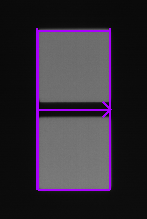
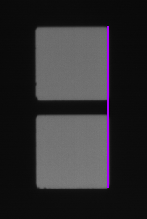
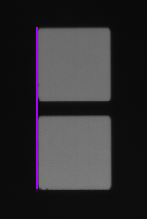
Both resulting segments, the "Front Segment" and "Back Segment", are not highlighted in the tool. To view or inspect one of the resulting segments, you can use the tool Get Segment Properties or any other tool that allows to process segment ROIs. The following table shows an example. On the left, you can see the paraxial rectangle which is connected to the tool to get the properties. The images on the right show the segments that are returned as "Front Segment" and "Back Segment" for the paraxial rectangle as they are connected and displayed in the tool Get Segment Properties.
|
Paraxial Rectangle |
Front Segment |
Back Segment |
|---|---|---|
|
|
|
|
Back Segment:
This result contains the segment of the paraxial rectangle at the base of the orientation arrow. It is returned as an ROI. If more than one paraxial rectangle is transferred via the parameter "Rectangle", the ROIs of all back segments are returned.
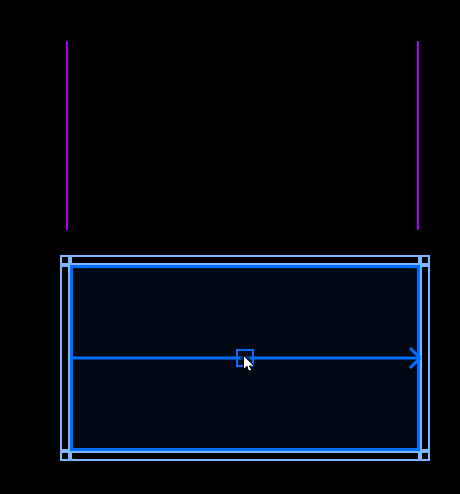
Both segments become visible while dragging the paraxial rectangle as shown in the following image.
Processing Time:
This result returns the duration of the most recent execution of the tool in milliseconds. The result is provided as additional result. Therefore, it is hidden by default but it can be displayed via the  button beside the tool results. For more information see the section Processing Time in the tool reference overview.


