Merge Regions
Use this tool to merge two tuples of regions represented by the parameters "Region 1" and "Region 2".
The tool requires that the two tuples of regions are available and delivered from previous tools. Therefore, the parameters "Region 1" and "Region 2" must be connected with an appropriate result of a previous tool.
Parameters
Basic Parameters
Image:
Use this parameter to set an image as background. This should usually be the image, the processed features e.g., contours or ROIs are based on. If no image is connected, the background will be black.
Region 1:
This parameter represents the first tuple of regions. The regions must be delivered from a previous tool. Therefore, you have to connect the parameter with the respective result of a previous tool. The connected region is then used for merging. The margin of the regions is highlighted in the defined color for "region input", e.g., red by default.
Region 2:
This parameter represents the second tuple of regions. The regions must be delivered from a previous tool. Therefore, you have to connect the parameter with the result of a previous tool. The connected region is then used for merging. The margin of the regions is highlighted in the defined color for "region input", e.g., red by default.
Method:
This parameter defines the method used to merge the two tuples of regions. As a default, "intersection" is selected as "Method".
|
Value |
Description |
|---|---|
|
intersection |
Get the regions in which "Region 1" and "Region 2" are overlapping. |
|
union |
Combine "Region 1" and "Region 2" to a single region. |
|
difference |
Subtract "Region 2" from "Region 1". |
|
symmetric difference |
Subtract the intersection between each element of "Region 1" and "Region 2" from the union of both regions. |
|
concatenation |
Concatenate "Region 1" with "Region 2". |
Results
Basic Results
Merged Regions:
This result contains the merged regions.
Tool State:
"Tool State" returns information about the state of the tool and thus can be used for error handling. For more information, see Tool State Result
Additional Results
Processing Time:
This result returns the duration of the most recent execution of the tool in milliseconds. The result is provided as additional result. Therefore, it is hidden by default but it can be displayed via the  button beside the tool results. For more information see the section Processing Time in the tool reference overview.
Example
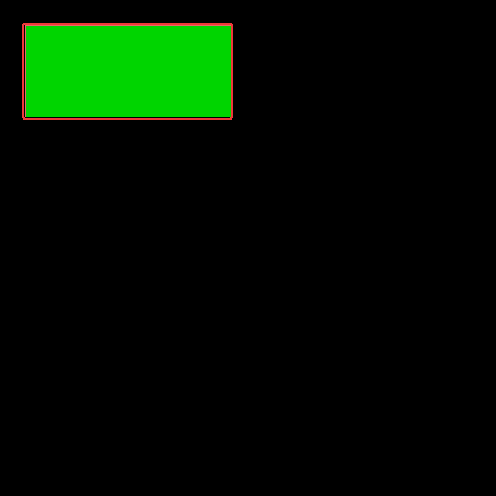
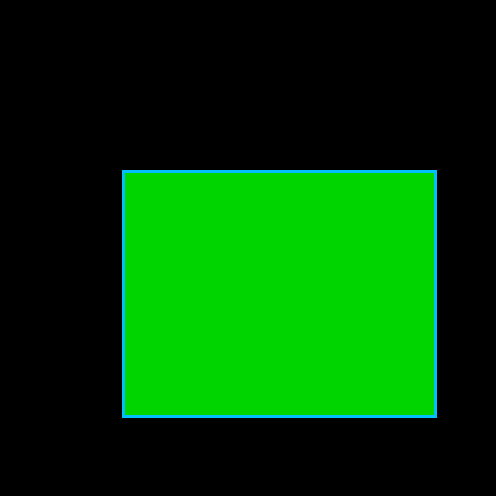
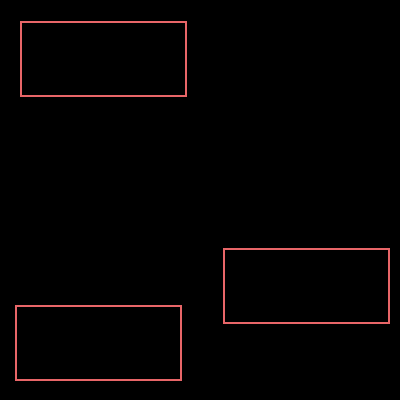
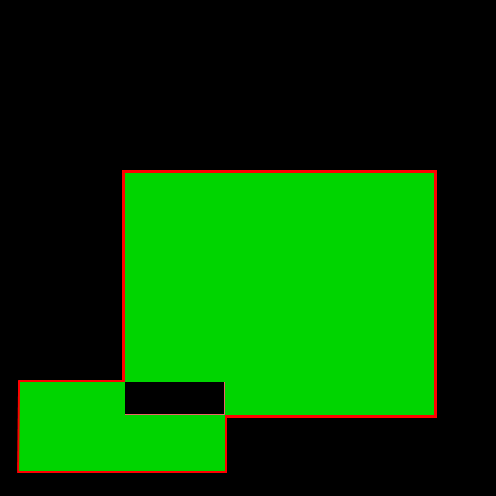
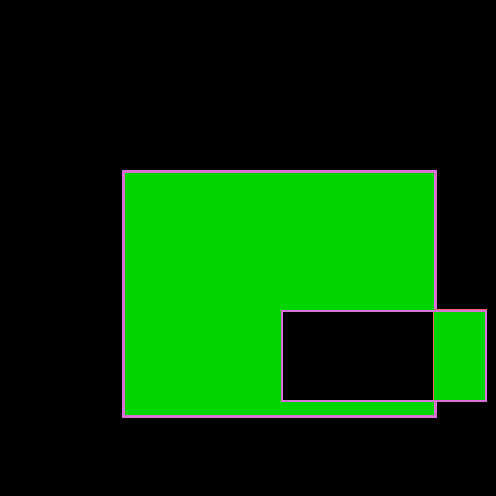
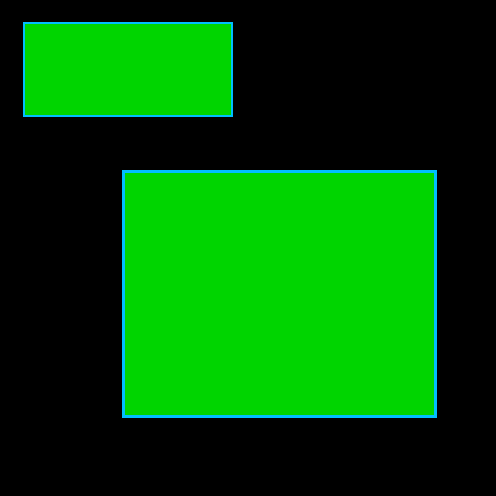
The left image below represents "Region 1" and the right image represents "Region 2". "Region 1" and "Region 2" are not commutative, i.e., if they are interchanged, the resulting number of regions inside the tuple "Merged Regions" might change.

The following drop-down list shows the result of merging the two tuples of regions with different methods.
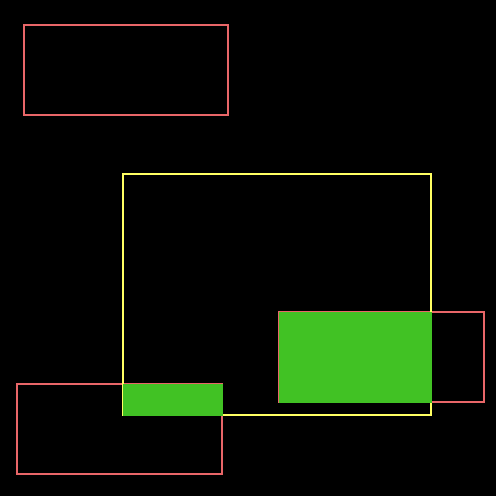
 intersection
The green areas indicate the regions in which "Region 1" and "Region 2" overlap.
The result "Merged Regions" is displayed below.
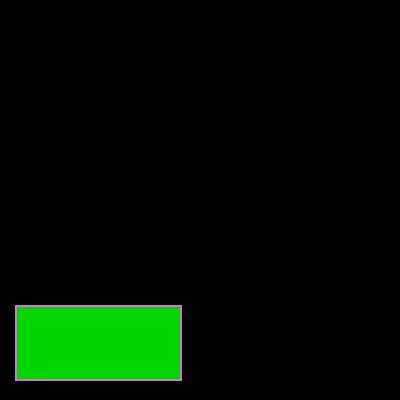
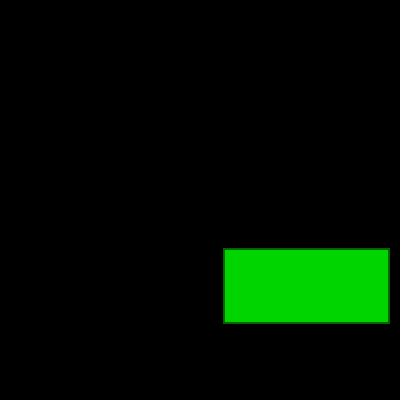
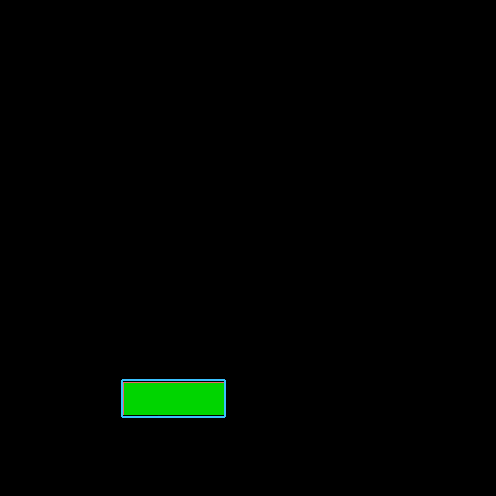
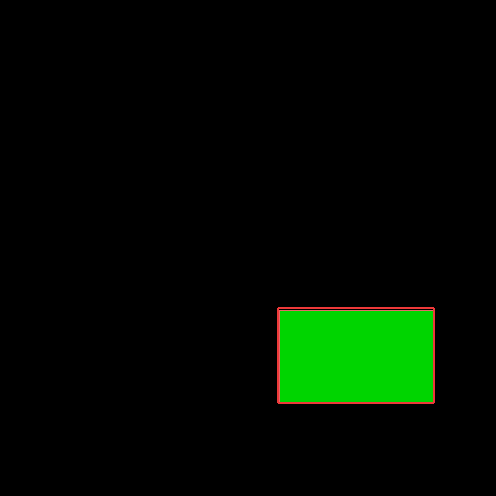
The tuple "Merged Regions" contains the following two elements.
union
The green areas indicate all elements of "Region 1" and "Region 2" combined to a single region.
The result "Merged Regions" is displayed below.

difference
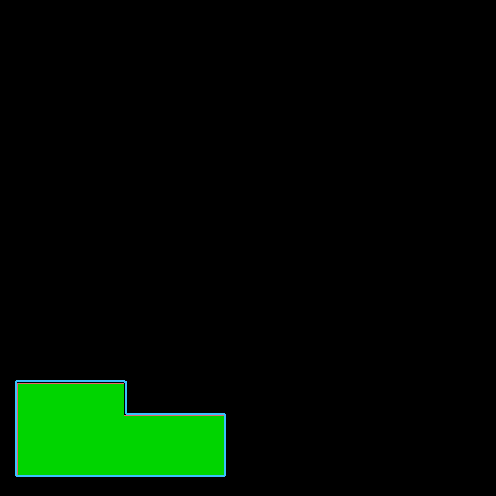
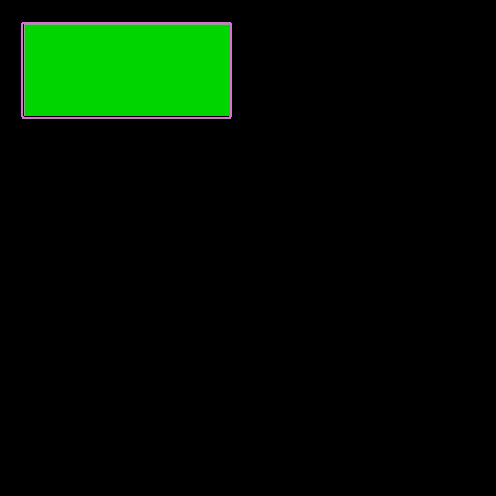
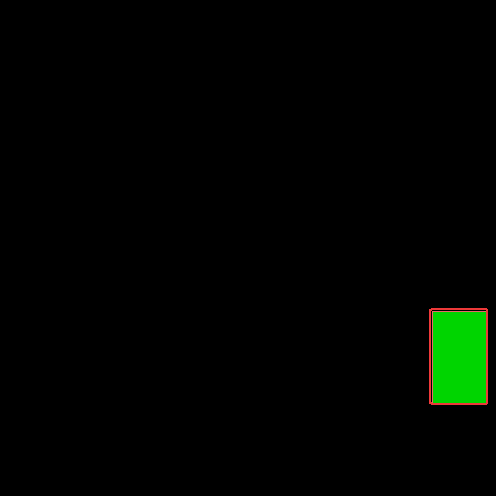
The green areas indicate the regions in which "Region 1" and "Region 2" are not overlapping.
The result "Merged Regions" is displayed below.
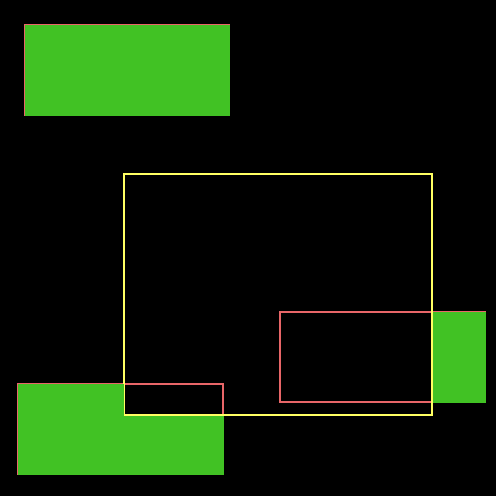
The tuple "Merged Regions" contains the following three elements.
symmetric difference
Each intersection of "Region 1" with "Region 2" is subtracted from the union of both regions.
The resulting regions are partly overlapping, as shown below.

The tuple "Merged Regions" contains the following three elements.
concatenation
The number of resulting regions equals the number of input regions.
The result "Merged Regions" shows the concatenated regions which are partly overlapping.

The tuple "Merged Regions" contains the following four elements.