Personalize the User Interface
Reorganizing the Panels
All panels in the MERLIC Designer can be moved and docked to particular parts of the window. This means that you can move the "Widget Library" and "Properties" panel until they are in a convenient position to work with them. It is also possible to drop the panels on top of each other and use them like tabs.
- Move the mouse over the title of the panel you want to move.
- Drag the panel to the part of the window where you want to dock it. While moving the panel an area highlighted in blue indicates the position in which the panel will be docked.
- If the desired area in the user interface is highlighted, drop the panel to dock it to the new position.
 View an example of how to move panels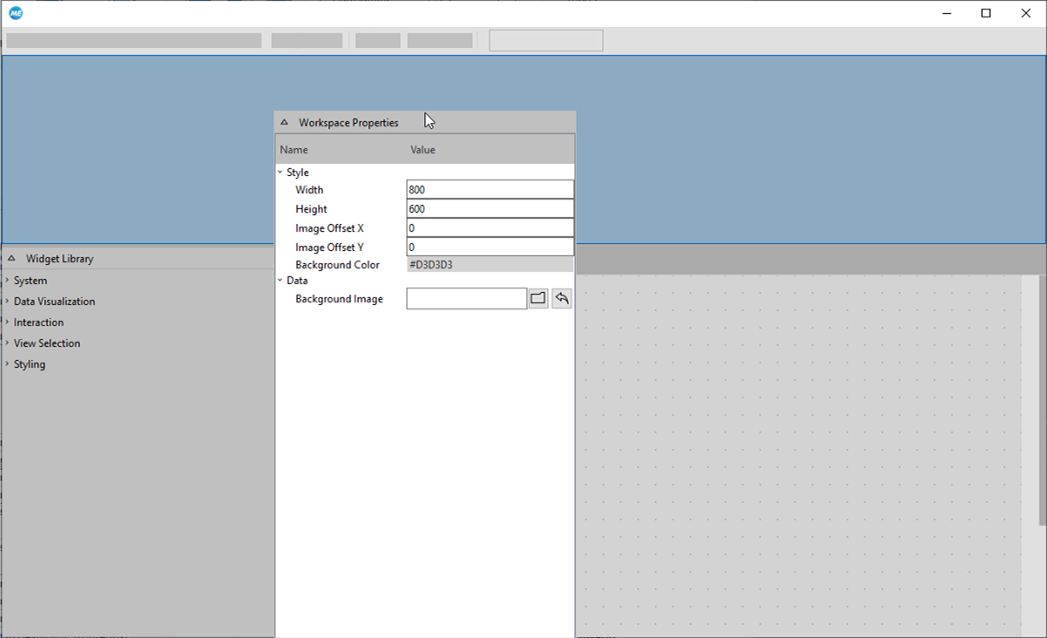
Setting the Grid Properties
By default a grid is visualized in the MERLIC Designer to simplify the positioning of widgets. You can adjust the display of the grid in the respective "Grid Properties" dialog.
- Open the properties dialog via the menu entry "Edit → Grid Properties".
- Adjust the size and color of the grid to your preferences.
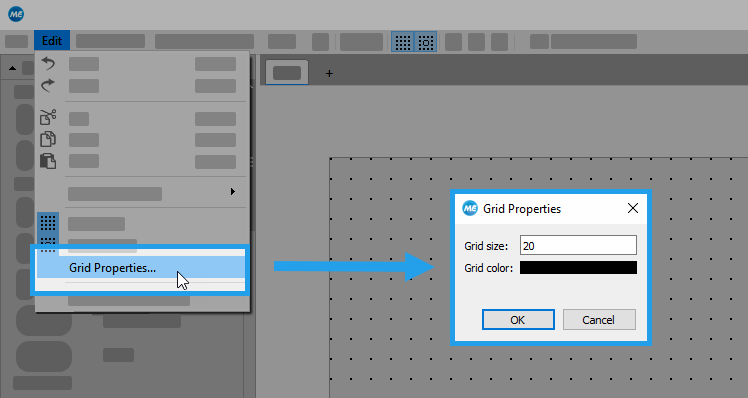
In addition, you can use the following menu entries or the respective menu buttons to make further adjustments:
 "Show Grid": Activate the display of the grid
 "Snap to Grid": Activate this mode to snap the widgets to the grid when moving them to a new position.



