Properties Panel
The properties panel allows you access to the properties of the individual widgets. You can adjust visual and control settings of the elements as well as connections to the MERLIC Creator. Some widgets can be connected to the tools from the MERLIC Creator and request the corresponding tool parameter values or results. Some elements even allow to adjust parameter values directly from the Frontend. Thus, the available properties may vary depending on the widget.
To display the properties of a specific widget inserted in the workspace, click on the element inside the workspace and the corresponding properties are displayed in the properties panel. In the following image the properties of the widget "Image Display" are shown.
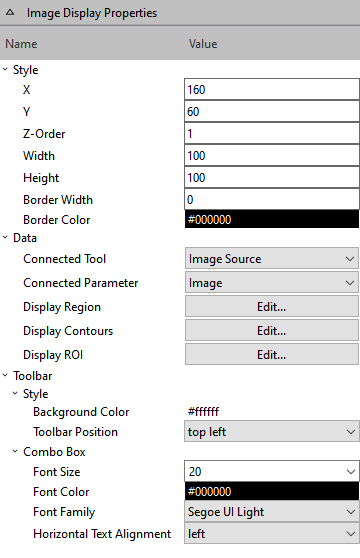
Please refer to the chapter Available Widgets to get more information about the provided widgets.
Searching for Tool Name and Connected Parameter
If you are looking for a specific connected tool or connected parameter, you may use the search function and enter the name of the tool or parameter.
- Click on the name of the tool or parameter. If no tool or parameter was selected previously <No tool> and <No parameter> is shown instead.
- Enter a search string. Only results containing the search string will be shown.
- Click on the desired result or press Enter to choose the first result.


