Starting the MERLIC Frontend on Windows
When starting a Frontend with MERLIC, the Frontend automatically connects to the MERLIC server of the MERLIC core The processing unit of a running MERLIC Vision App. it was started with.
You do not need to define any connection settings for the Frontend, they are chosen automatically to match the available channels. As a consequence the connection settings from the INI configuration file, that is, the settings for "Host" and "Port" are ignored. For more information, see The MERLIC INI File.
Starting the Frontend Via the MERLIC GUI
You can start the Frontend directly from the MERLIC Creator and the MERLIC Designer. The Frontend will be automatically opened with the MERLIC Vision App (MVApp) that is currently loaded in the MERLIC Creator.
How to Start the Frontend From the MERLIC Creator
- Open the MERLIC Creator.
- Open the drop-down menu "Run" in the menu bar.
- Click on "Launch Frontend".
How to Start the Frontend From the MERLIC Designer
- Open the MERLIC Designer
- Click on "
 Launch Frontend" in the menu bar.
How to Start the Frontend via Keyboard Shortcut:
- Open the MERLIC Creator or MERLIC Designer and press F10.
Starting the Frontend via the Windows Start Menu
- Open the Windows start menu.
- Navigate to "MVTec MERLIC 26.03"
- Click on "MERLIC 26.03 Frontend".
The MERLIC core The processing unit of a running MERLIC Vision App. and MERLIC server are started automatically when starting the Frontend without the MERLIC Creator.
Starting the Frontend via the Command Line
- Open a command prompt and change to the "bin\x64-win64" directory within the MERLIC installation path, for example, "%PROGRAMFILES%\MVTec\MERLIC-26.03\bin\x64-win64".
- Start the Frontend with a specified MVApp and use the command line option "-f" or "--frontend":
Copy
merlic_creator.exe --frontend <FILENAME>.mvappTo automatically execute the specified MVApp in the Frontend, you can add the command line option "-x" or "--execute":
Copymerlic_creator.exe --frontend <FILENAME>.mvapp --execute
The MERLIC core The processing unit of a running MERLIC Vision App. and MERLIC server are started automatically when starting the Frontend without the MERLIC Creator.
Please see also the special aspects regarding the licenses when starting a MVApp directly in the Frontend.
You can also use the executable file "merlic_frontend.exe" to start the MERLIC Frontend, for example, if you want to start the Frontend with a connection to a remotely running MERLIC. For more information, see Connecting the MERLIC Frontend to a Remote Server.
Command Line Options
MERLIC provides several command line options for "merlic_creator.exe".
|
Command line option |
Description |
|---|---|
|
-h, --help |
Get help for the available command line options and arguments. |
|
-V, --version |
Display the MERLIC version. |
|
--ini |
Set the full path and file name of the INI file that is used for the configuration of the MERLIC settings, e.g., settings for the Frontend, process integration mode, or logging. If the Frontend is started from the MERLIC Creator, the -ini option, that was used for starting the MERLIC Creator, is forwarded to the Frontend. |
|
-f, --frontend |
Start the MERLIC Frontend with the specified MVApp. |
|
-x, --execute |
Execute the MVApp. |
|
--image_source_config_ports |
Define the ports that are opened by the MERLIC Creator to allow the configuration of image sources. If this option is used, only one instance of the MERLIC Creator can be started. For more information, see the description of the respective configuration property ImageSourceConfigurationPorts. |
Starting the Frontend in MERLIC RTE Mode
If you start the process integration mode of MERLIC, the MERLIC Frontend is automatically opened with the MVApp that is referenced in the loaded recipe file. For more information, see Starting and Stopping MERLIC RTE.
By default, the MERLIC Frontend will be locked for modifications when it is connected to a MERLIC RTE instance because the used communication device is given control over MERLIC. For more information, see Write Access in the Frontend and Acquiring and Releasing Write Access in the Frontend.
Special Aspects With Respect to Licenses When Starting a MERLIC Frontend Without MERLIC Creator
When using Frontends without a MERLIC Creator, you have to consider that you can run up to 2 instances of MERLIC with one MERLIC license.
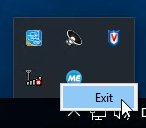
If a MVApp is started directly in the MERLIC Frontend without the MERLIC Creator, e.g., from the command line, the MERLIC core The processing unit of a running MERLIC Vision App. will also be started and runs in the background. This is visible by a system tray icon.
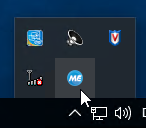
If the MERLIC core The processing unit of a running MERLIC Vision App. is running in the background, it also counts as one running instance of MERLIC. This means that only one more instance of MERLIC is still free for use. Thus, if a MVApp is opened directly in the Frontend (without a MERLIC Creator) and a MERLIC Creator is also running at the same time, two instances of MERLIC are already in use. Therefore you cannot open another instance of MERLIC anymore if you have only one MERLIC license.
The MERLIC core The processing unit of a running MERLIC Vision App. keeps running in the background if it is not closed explicitly. It can be closed via a right-click on the system tray icon.