Speed-Up Tips
To optimize the processing time in MERLIC you can follow the recommendations for your setup in this topic. Optimizing your setup can lead to an improved loading time of MERLIC and certain MVApps as well as a faster tool execution.
- System Requirements and Configuration
- General Tips for Building an MVApp
- Configuring MVApps and Tools
- Disabling Foreground Window Priority Boost
- Advanced Options for the INI File
System Requirements and Configuration
Make sure your system meets all requirements for using MERLIC as described in topic Supported Platforms and System Requirements. Furthermore, make sure that MERLIC is not impeded by other processes running on your computer, for example, updates, virus scans, etc.
General Tips for Building an MVApp
The following sections contain information about processes in MERLIC that influence the use of system resources in varying degrees. Use this information to implement software architecture features that can help you to speed up MERLIC. In many cases there is a trade-off between speed and robustness of the computation that is influenced by more than one factor.
Optimizing the Use of Images and Cameras
- If possible use images with a resolution and size that is appropriate for your application. Images should only be as large as necessary.
- Choose a file format that is suited for your purposes. For reading and writing ima and jpeg 20 usually are fastest.
- Choose a suitable field of vision and focus for your camera and minimize the image size. Additionally you can use the tool Crop Image to reduce the image size for subsequent tools.
- If possible use ROIs for alignment instead of aligning the whole image with Align Image.
- In the tool Calibrate Camera set the parameter "Camera Setup Mode" to "0" if the calibration values are available already.
Logging
Keep the number and size of log files to a reasonable value. A significant number of log files may delay the start up of MERLIC. For more information see the topic Logging.
Using Parallel Processing
If possible build MVApps that make use of parallel processing. For more information see the topic Parallel Processing.
Configuring MVApps and Tools
The following topics contain information about the tool configuration and parameters that can be optimized.
- We recommend to use only as many tools as necessary. Check your MERLIC Vision App for tools that perform intermediate steps or preprocessing steps that can be realized differently or with less tools.
 Example
In the MERLIC Vision App example read_lot_number_and_ECC200.mvapp the images are not aligned by an alignment tool. Instead the tool Read Text and Numbers is able to handle images that are slightly misaligned.
- Most tools support working with a parameter ROI or with different kinds of ROIs to define a processing or search area. Minimize the number and size of the ROIs and search ROIs in individual tools and the whole MVApp. If easyTouch is available in the tool it supports you in finding suitable areas by displaying a visual feedback on your selection.
- It is more effective to use alignment data on the ROI instead of on the image. In most tools like Read Aztec Code the alignment data are applied to the ROI by default.
Tools
Determine Alignment with Straight Border
Set the value for the training parameter "Minimum Edge Completeness Train" as high as possible.
For more information about the parameter see the tool reference of Determine Alignment with Straight Border.
Check Presence with Gray Features
- Set the value for the parameter "Acceptance Threshold" only as low as necessary.
- Set the value for the parameter "Update Features" to "0", if it is not necessary to determine the training features automatically with a new training.
- Set the value for the parameter "Maximum Distance" as short as possible.
- Set the value for the parameter "Size Tolerance" to "0" if the model has the same size in the processed images as in the trained model.
For more information about the parameters see the tool reference of Check Presence with Gray Features.
Tools in the Category Reading
- Set the value for the parameter "Expected Number of Codes" to exactly the number of codes that are visible on the image and use images that only contain codes that should be read.
- Set the values for the parameters for minimum and maximum height or width like "Minimum Bar Code Height" manually for unusually high or flat codes.
- Set the values for parameters for tolerance levels like "Element Width Tolerant", "Contrast Tolerance", or "Start Stop Tolerant" only as high as necessary.
- Set the value for the parameter "Mirrored Code" to "no".
- Set the value for the parameter "Robust Against Small Modules" to "0".
For more information about the parameters see the topic Reading.
Tool Parameters
Highest Pyramid Level Train
If you are using a tool that looks for matching objects, the tool parameter "Highest Pyramid Level Train" defines the deepest search level. If it is set too small, the time required to find the model may increase. This is especially the case if images with a large size are used. In this case we recommend to increase the value for the tool parameter "Highest Pyramid Level Train" as long as the model still can be found.
Example
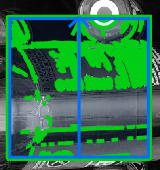
Example for a successful training in the tool Determine Alignment with Matching with the parameter "Highest Pyramid Level Train" value "3":
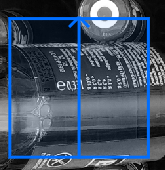
Example for a failed training in the tool Determine Alignment with Matching with the parameter "Highest Pyramid Level Train" value "4":
Minimum Score
If you are using a tool that looks for matching objects, the tool parameter "Minimum Score" defines how accurate the matching has to be. Set the value of the tool parameter "Minimum Score" as high as possible. If the model can be expected never to be occluded in the images, the value for the tool parameter "Minimum Score" may be set as high as "0.8" or even "0.9".
Deformation Tolerance
If you are using a tool that looks for matching objects, the tool parameter "Deformation Tolerance" defines if MERLIC should search for deformed objects. Set the value for the tool parameter "Deformation Tolerance" as small as possible.
Orientation Tolerance
If you are using a tool that looks for matching objects, the tool parameter "Orientation Tolerance" defines if MERLIC should search for rotated objects. Set the value for the tool parameter "Orientation Tolerance" only as high as the maximum orientation divergence in your images.
Timeout Duration
Use the tool parameter "Timeout" in reading tools to interrupt the execution of tools only if it is absolutely necessary. The timeout is ignored in training mode.
Maximum Overlap
If you are using a tool that looks for matching objects, use images without overlapping objects in them. Set the value of the tool parameter "Maximum Overlap" only as high as necessary. If you set the value to "0", only objects without any overlap are found.
Maximum Number of Objects
If you are using a tool that looks for matching objects, set the value of the tool parameter "Maximum Number of Objects" as low as possible. If the number of objects exceeds the default value, only the best objects, exceeding the value of the tool parameter "Minimum Score" are returned.
Processing Region
Choose a value for the tool parameter "Processing Region" that is only as big as necessary. The processed region can be influenced by the ROIs as well.
Widgets
Table
For optimal performance ensure to add a "Number of Columns" or "Number of Rows" large enough to display all desired data but not any larger.
Disabling Foreground Window Priority Boost
Windows prioritizes the process associated with the current foreground window over background processes. When MERLIC Creator runs in the foreground continuously and puts the system under load, other processes may receive limited access to CPU resources.
This is particularly noticeable when an AI tool is using the CPU as processing unit. Aside from third-party processes running on the PC, this also affects the MERLIC Frontend or MERLIC RTE Setup when launching them from within the running MERLIC Creator.
You can avoid this issue in one of the following ways:
- Stop MERLIC Creator from running continuously, so it does not overload the system.
- Click on the desktop or switch to another window to withdraw the priority boost from the MERLIC Creator process.
- Disable the foreground window priority boost feature in Windows. This change applies system-wide and requires administrator rights.
- Open "Adjust the appearance and performance of Windows" in the Windows settings.
- Go to the "Advanced" tab and select "Adjust for best performance of: Background services".
Advanced Options for the INI File
Set the property "CycleTime" as high and the property "ReconnectInterval" as low as possible. For more information see the topic The MERLIC INI File.


