Check Presence with Matching
Use this tool to check the presence of objects with matching.
This tool is used with a training mode. This means that a training has to be performed based on selected reference objects and specified training parameters. The training starts automatically whenever training parameters are set or changed.
The tool provides a training area on the left side of the Tool Board. It enables you to switch between the processing mode for the search and the training mode for the training of the matching model by clicking on the respective image. The graphics window will display the image of the currently active mode which is highlighted in blue in the training area. In addition to the search parameters on the top left, the tool provides further parameters for the training on the top right of the tool.
See the topic Working with the Training Mode to learn more about how to work with tools that require a training.
The Tool Board is split into the training area on the left of the and the graphics window on the right.
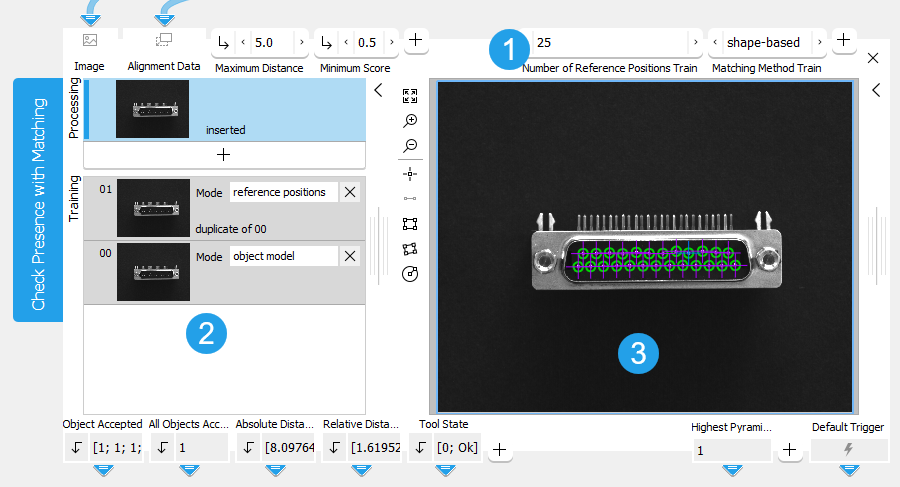
 Training parameters
 Training area
 Graphics window
Shown Images
The training section shows three images: the processing image and two training images.
- The processing image: The current "Image" received from a previous tool.
- Two training images: They are used to define the reference objects and the reference positions at which the objects are expected in the images.
Defining the Training Settings
The training starts automatically whenever training parameters are set or changed.
Selecting the Training Images and the Training Mode
Two training images are needed for the training:
- One training image for the mode "object model". This mode is used to define a reference object for the training.
- One training image for the mode "reference positions" that is used to train the expected position of the objects in the images.
You have to select these images by clicking on the  button to transfer the image to the training area. The images are marked as "not used" and you will have to assign the mode manually.
If you add further images to the training area, these are marked as "not used" since only one image for the "reference positions" and one for the "object model" can be selected at a time. You can, however, prepare useful images as "not used" and test the training with them. For this purpose you can exchange them with the currently selected image for "object model" or "reference positions" by first setting the corresponding image to the mode "not used" and then setting the new mode for the other image.
You may also select different images for the training. You just have to run the application in single steps until the desired image is displayed in the graphics window and thus in the processing area. Click on the button to transfer the image to the training area and set the desired mode for the training image.
Setting the Training Parameters
Defining a Reference Object for the Training
- Click on the training image of the "object model" on the left of the Tool Board. The image will be displayed in the graphics window and you may start with the selection of the reference object. You can define only one reference object. Additional ROIs will be part of that reference object.
- Draw one or multiple regions of interest (ROIs) over the object you want to use as reference object for the search. It is recommended to use multiple ROIs to increase the robustness of the presence check, especially if the shape of the reference objects does not fit into a single ROI.
The training parameters are on the top right of the tool. They are automatically adjusted to the selected model ROI. Each time the model ROI is modified also the training parameters are estimated.
Defining the Expected Number of Occurrences
- Define the number of objects that are expected in the images in the training parameter "Number of Reference Positions". It is recommended to enter the value directly instead of using the slider as this prevents an execution of the training at each of the intermediary values on the slider.
Defining the Position References
- Switch to the training image with the mode "reference positions" to define the respective reference positions in which the reference object is expected. The tool highlights possible objects in the training image that fit the reference object.
- Check in the training image if all training objects are found at the correct position.
- If not, draw ROIs over the image part in which the objects are expected to restrict the search area to the area of the ROI. The ROIs can only be used to narrow the search area, i.e., they cannot be used to define the reference positions itself. The exact positions of the found reference objects are internally stored as a point ROI. Use the Ctrl button to draw multiple ROIs until they match the number of expected reference positions.
In case the reference positions of the object model is already available in a previous tool, you may use the known position data instead and connect the respective ROI result of the previous tool to the parameter "Reference Positions". See the description of the parameter Reference Positions for more details.
Adjusting the Search Parameters
- Click on the processing image.
- Adjust the search parameters on the left side of the Tool Board according to the training. They depend on the images of your application and are not adjusted automatically.
- Check if the current settings of the training and search parameters are suitable by running the application using a series of images. Verify in the images if the presence check works correctly with the training matching model.
- If necessary, make further adjustments to the parameters.
Area Restrictions
Objects, which lie partially outside of the image, will be ignored during the processing.
Parameters
Depending on the selected training method at the parameter "Matching Method Train", some connectors are grayed out. This means that they are not applicable for the currently selected training method and thus have no effect.
Basic Parameters
Image:
This parameter represents the input image used for this tool. It can be used either as a training image to determine the matching model or it can be used as a processing image to test the trained data.
If a color image is used as input image for this tool, only the first channel, i.e., the red channel, is used for the processing.
Maximum Distance:
This parameter defines how much the position of the objects may differ from the trained reference position. It is defined in pixels and set to 5 px by default. This means that the position of the objects to be checked may differ up to 5 px from the trained position. You can change the "Maximum Distance" to a value between 0 and 100 px at the corresponding parameter to adapt the tolerance for the search. If "Calibration Data" are available and used for the processing, the "Maximum Distance" is represented as a calibrated distance in a range between 0 and 100 px. If it is known how much the position of the objects may vary in the images, you can adjust the "Maximum Distance" accordingly.
Minimum Score:
This parameter defines how accurate the matching is done. It is used for the search of the model and determines how much of the trained model must be visible in the image to find a matching object. It is set to 0.5 by default. This means that half of the model may be occluded in the image. You can change its value at the corresponding connector. The value can be set to a number between 0.1 and 1. The higher the "Minimum Score" the faster is the search. If the model can be expected never to be occluded in the images, the "Minimum Score" may be set as high as 0.8 or even 0.9. Otherwise you may have to decrease the value of this parameter to find matches in images in which a big part of the trained model is occluded.
To speed up the search, a so-called pyramid of contracted images is used. A match needs a score that is large enough on every level to be recognized as such. This can lead to excluding matches, although their score on the original image is larger than the minimal score, because they are not recognizable enough on a higher contraction level. These missed matches may be found with a lowered minimum score.
You may test the current "Minimum Score" by running the application step by step and check if the presence of the objects is checked correctly within all images.
Additional Parameters
Reference Positions:
This parameter defines the reference positions in which the objects are expected. It can be used if the expected reference positions are already known or have already been determined in a previous tool. You can reuse the data and connect the respective ROI result of the previous tool to this parameter. The transferred data are then used to define the reference positions for the object model of the training. The positions must be given as a point ROI. Therefore, you have to make sure, that the available positions that shall be connected from a previous tool are returned in a point ROI. By default no reference positions are defined in this parameter.
If the reference positions are not available from a previous tool, you can determine the expected positions of the objects in a training image with the mode "reference positions" as described in the section Setting the Training Parameters. However, if valid position data are transferred to the parameter "Reference Positions", they will have precedence over possible position references that have been determined in a training image.
Calibration Data:
This parameter defines the calibration data needed for the correction of possible lens distortions and the position of the camera with respect to the image plane. By default no calibration data are defined. If you want to use calibration data, you have to connect the parameter to an appropriate result of a previous tool, e.g., Calibrate Camera, to make sure that the calibration data are transmitted to this tool. It will be instantly applied to the image.
In case "Calibration Data" are used for this tool, all results that represent pixel values will be automatically transformed to the corresponding world coordinates.
Alignment Data:
This parameter represents the alignment data that are used to align the ROI. By default no alignment data are connected and thus no effect is visible. If you want to use specific alignment data, you have to connect the parameter to an appropriate result of a previous tool such as Determine Alignment with Matching, Determine Alignment with Straight Border, Align Image, or Rotate Image.
Failed Processing:
This parameter defines which value is returned in the result "Absolute Distance" and "Relative Distance" in case no object is found at the defined reference positions. The parameter is set to "ignore" by default. You may set the parameter at the corresponding connector to the following values.
|
Value |
Description |
|---|---|
|
ignore |
No value is returned if an object was not found. |
|
−1 |
−1 is returned for each object that was not found. You may replace it directly in the input field of the connector with any number or string you want to return. |
|
* |
* is returned for each object that was not found. You may replace it directly in the input field of the connector with any number or string you want to return. |
Deformation Tolerance:
This parameter defines the maximum allowable deformation of the objects. It is defined in pixels and set to 1 px by default. This means that objects that are deformed up to 1 px with respect to the shape of the reference object of the trained model are also found. You can change its value at the slider of the corresponding connector to a value between 0 and 10 px and above if you enter the value manually. If you set the value to 0, only objects without any deformations are found. However, the higher the "Deformation Tolerance" the higher is the risk that wrong objects are found, especially for objects with fine structures. The "Deformation Tolerance" should therefore be chosen as small as possible and only as high as necessary. If it is known how much deformation of the objects may be expected in the images, you can adjust the value for the "Deformation Tolerance" accordingly. The "Deformation Tolerance" only is valid if "Matching Method Train" is set to "shape-based".
Maximum Overlap:
This parameter defines the maximum allowable overlap of the objects to be found, i.e., it defines a tolerance for this overlap. The overlap is determined with respect to the smallest surrounding rectangle around the object and not the area of the object itself. Therefore it is possible that two objects overlap even though their actual areas do not intersect.
The "Maximum Overlap" is represented as a percentage value and set to 30% by default. This means that up to 30% of the smallest surrounding rectangle of an object may be occluded in the search image to be included in the presence check. If more than 30% of the object is occluded, it is not found. You can change its value at the corresponding connector to a value between 0 and 100. If you set the value to 0, only objects without any overlap are found. However, the higher the "Maximum Overlap", the higher is the risk that wrong objects are found.
Training Parameters
The training parameters only influence the training and they are not changeable during execution of the tool. They are marked with the suffix '‑‑‑Train' in their name, in order to distinguish them from the corresponding parameter used when applying the tool.
Basic Training Parameters
Number of Reference Positions Train:
This training parameter defines the number of reference positions where the objects are expected in the ideal case. Thus it defines the number of objects that are expected. The parameter is set to 1 by default. This means that only one reference position of the reference object is trained and therefore only one object is searched in the processing images. You have to adapt the number manually at the corresponding connector. The number of reference positions can be set up to 100. If you have adjusted the value, the corresponding objects are instantly visualized in the training image of the "Reference Positions" mode. It is recommended to enter the value directly with the keyboard instead of using the slider as this prevents an execution of the training at each of the intermediary values on the slider.
Matching Method Train:
This training parameter defines the matching method used for the checking. The parameter is set to "shape-based" by default. You can change the "Matching Method Train" at the corresponding connector.
|
Value |
Description |
|---|---|
|
shape-based |
This matching approach describes the reference object in the trained model by the shapes of its contours. Use this method, if you want to check the presence of objects with a matching method that finds the best matches of a shape model in an image. |
|
correlation-based |
This matching approach describes the reference object in the trained model by the gray value relations of the contained pixels. Use this method, if you want to check the presence of objects with a matching method that uses normalized cross correlation (NCC) to match objects or patterns. |
Additional Training Parameters
The additional training parameters are listed by the matching method they are related to. Parameters of other methods can be set but will have no influence on the resulting training model.
 Training parameters for the shape-based matching
Minimum Score Train
Training parameters for the shape-based matching
Minimum Score Train
This parameter defines how accurate the matching is done. It is used for the search of the model and determines how much of the trained model must be visible in the image to find a matching object. It is set to 0.5 by default. This means that half of the model may be occluded in the image. You can change its value at the corresponding connector. The value can be set to a number between 0.1 and 1. The higher the "Minimum Score" the faster is the search. If the model can be expected never to be occluded in the images, the "Minimum Score" may be set as high as 0.8 or even 0.9. Otherwise you may have to decrease the value of this parameter to find matches in images in which a big part of the trained model is occluded.
To speed up the search, a so-called pyramid of contracted images is used. A match needs a score that is large enough on every level to be recognized as such. This can lead to excluding matches, although their score on the original image is larger than the minimal score, because they are not recognizable enough on a higher contraction level. These missed matches may be found with a lowered minimum score.
You may test the current "Minimum Score" by running the application step by step and check if the presence of the objects is checked correctly within all images.
Orientation Tolerance Train
This parameter defines the tolerance value for the rotation in which the reference object may differ from the object model. It is used to search and determine the reference object. It is defined in degrees and set to 5° by default. You can change the "Orientation Tolerance" to an angle between 0° and 180° at the corresponding connector. If the rotation range in which the objects appear in the reference images is known, you can adjust the value of the "Orientation Tolerance" accordingly.
Highest Pyramid Level Train
This parameter defines the number of pyramid levels used during the search. The parameter is set to "auto" by default. You can change its value at the corresponding connector to a level between 2 and 100. It should be set as large as possible to reduce the time needed to find the object. However, if it is set too large, the model may not be recognized anymore. Thus it should also be set small enough that the model is still recognizable.
The selection of the suitable pyramid level, i.e., the highest pyramid level on which at least one instance of the shape model can be found, depends on the model and on the input image. The appropriate "Highest Pyramid Level" may vary from image to image. If the input image is of poor quality, i.e., the image is defocused, deformed, or noisy, it may be possible that no instance of the model is found with the default setting because of possibly missing or deformed edges. In this case decrease the value for the "Highest Pyramid Level".
If the parameter "Highest Pyramid Level" is set too small, the time required to find the model may increase and cause MERLIC to be very slow. This is especially the case if "Matching Method" is set to "correlation-based" and images with a large size are used. In this case we recommend to increase the value for "Highest Pyramid Level".
Maximum Overlap Train
This parameter defines the maximum allowable overlap of the objects to be found, i.e., it defines a tolerance for this overlap. The overlap is determined with respect to the smallest surrounding rectangle around the object and not the area of the object itself. Therefore it is possible that two objects overlap even though their actual areas do not intersect.
The "Maximum Overlap" is represented as a percentage value and set to 30% by default. This means that up to 30% of the smallest surrounding rectangle of an object may be occluded in the search image to be included in the presence check. If more than 30% of the object is occluded, it is not found. You can change its value at the corresponding connector to a value between 0 and 100. If you set the value to 0, only objects without any overlap are found. However, the higher the "Maximum Overlap", the higher is the risk that wrong objects are found.
Model Edge Contrast Train
This training parameter defines the edge contrast of the used model. It is defined in gray values and set to 10 by default. This means that objects with a contrast of at least 11 gray values will be found. There are different ways to set the edge contrast:
- Automatically with easyTouch
Use easyTouch to select the objects in the training image. The parameter value is automatically adjusted according to your easyTouch selection.
- Manually
Set the desired edge contrast manually at the corresponding connector and draw a model ROI over each part in the training image in which you want to find reference objects. You can set the value with the slider or type a value between 1 to 1 000 000 000 into the text field. All possible objects that fit to the defined edge contrast will be found. If you want to add further objects as reference for the training, you have to make sure to draw the model ROI manually into the image. When using easyTouch to select the objects, the parameter value is adjusted automatically and your previously defined setting will be lost.
Search Edge Contrast Train
This training parameter defines the edge contrast that is used for the search of the objects in the training images. It is defined in gray values and set to 5 by default. This means that objects with a contrast of at least 6 gray values will be found. There are different ways to set the edge contrast:
- Automatically with easyTouch
Use easyTouch to select the objects in the training image. The parameter value is automatically adjusted according to your easyTouch selection.
- Manually
Set the desired edge contrast manually at the corresponding connector and draw a model ROI over each part in the training image in which you want to determine the edges with the defined contrast. You can set the value with the slider or type a value between 1 to 1 000 000 000 into the text field. All possible objects that fit to the defined edge contrast will be found. If you want to add further objects as reference for the training, you have to make sure to draw the model ROI manually into the image. When using easyTouch to select the objects, the parameter value is adjusted automatically and your previously defined setting will be lost.
Deformation Tolerance Train
This parameter defines the maximum allowable deformation of the objects. It is defined in pixels and set to 1 px by default. This means that objects that are deformed up to 1 px with respect to the shape of the reference object of the trained model are also found. You can change its value at the slider of the corresponding connector to a value between 0 and 10 px and above if you enter the value manually. If you set the value to 0, only objects without any deformations are found. However, the higher the "Deformation Tolerance" the higher is the risk that wrong objects are found, especially for objects with fine structures. The "Deformation Tolerance" should therefore be chosen as small as possible and only as high as necessary. If it is known how much deformation of the objects may be expected in the images, you can adjust the value for the "Deformation Tolerance" accordingly. The "Deformation Tolerance" only is valid if "Matching Method Train" is set to "shape-based".
Polarity Metric Train
The parameter determines the conditions under which the model is recognized in the image. It is set to "use polarity" by default.
|
Value |
Description |
|---|---|
|
use polarity |
If this polarity metric is used, the object in the training image and the processing image must have the same contrast, e.g., if the model is a bright object on a dark background, the object is found only if it is also brighter than the background. This metric can only be applied to single-channel images. If a multichannel image is used as the training image or as the processing image, only the first channel will be used. |
|
ignore color polarity |
If this polarity metric is used, the model is found even if the color contrast changes locally, e.g., if parts of the object change their color from green to red. This mode is useful if you do not know in advance in which channels the object is visible. However, the run time in the processing mode can increase significantly with this polarity metric. This metric can be used for images with an arbitrary number of channels. If it is used for single-channel images, it has the same effect as "ignore local polarity". The number of channels in the creation of the training model and the search can be different. This can be used to create a model from a synthetically generated single-channel image. Furthermore, the channels do not need to contain a spectral subdivision of the light like in an RGB image. The channels can also contain images of the same object that were obtained by illuminating the object from different directions. |
|
ignore global polarity |
If this polarity metric is used, the model is found in the image also if the contrast reverses globally, e.g., if the model is a bright object on a dark background, the object is not only found if it is brighter than the background (as for "use polarity") but also if it is darker than the background. In this case, the run time in the processing mode will increase slightly. This metric can only be applied to single-channel images. If a multichannel image is used as the training image or as the processing image, only the first channel will be used. |
|
ignore local polarity |
If this polarity metric is used, the model is found even if the contrast changes locally. This is useful if the object consists of a part with medium gray value, within which either darker or brighter sub-objects lie. However, the run time in the processing mode can increase significantly with this polarity metric. This metric can only be applied to single-channel images. If a multichannel image is used as the training image or as the processing image, only the first channel will be used. |
Training parameters for the correlation-based matching
Minimum Score Train
This parameter defines how accurate the matching is done. It is used for the search of the model and determines how much of the trained model must be visible in the image to find a matching object. It is set to 0.5 by default. This means that half of the model may be occluded in the image. You can change its value at the corresponding connector. The value can be set to a number between 0.1 and 1. The higher the "Minimum Score" the faster is the search. If the model can be expected never to be occluded in the images, the "Minimum Score" may be set as high as 0.8 or even 0.9. Otherwise you may have to decrease the value of this parameter to find matches in images in which a big part of the trained model is occluded.
To speed up the search, a so-called pyramid of contracted images is used. A match needs a score that is large enough on every level to be recognized as such. This can lead to excluding matches, although their score on the original image is larger than the minimal score, because they are not recognizable enough on a higher contraction level. These missed matches may be found with a lowered minimum score.
You may test the current "Minimum Score" by running the application step by step and check if the presence of the objects is checked correctly within all images.
Orientation Tolerance Train
This parameter defines the tolerance value for the rotation in which the reference object may differ from the object model. It is used to search and determine the reference object. It is defined in degrees and set to 5° by default. You can change the "Orientation Tolerance" to an angle between 0° and 180° at the corresponding connector. If the rotation range in which the objects appear in the reference images is known, you can adjust the value of the "Orientation Tolerance" accordingly.
Highest Pyramid Level Train
This parameter defines the number of pyramid levels used during the search. The parameter is set to "auto" by default. You can change its value at the corresponding connector to a level between 2 and 100. It should be set as large as possible to reduce the time needed to find the object. However, if it is set too large, the model may not be recognized anymore. Thus it should also be set small enough that the model is still recognizable.
The selection of the suitable pyramid level, i.e., the highest pyramid level on which at least one instance of the shape model can be found, depends on the model and on the input image. The appropriate "Highest Pyramid Level" may vary from image to image. If the input image is of poor quality, i.e., the image is defocused, deformed, or noisy, it may be possible that no instance of the model is found with the default setting because of possibly missing or deformed edges. In this case decrease the value for the "Highest Pyramid Level".
If the parameter "Highest Pyramid Level" is set too small, the time required to find the model may increase and cause MERLIC to be very slow. This is especially the case if "Matching Method" is set to "correlation-based" and images with a large size are used. In this case we recommend to increase the value for "Highest Pyramid Level".
Maximum Overlap Train
This parameter defines the maximum allowable overlap of the objects to be found, i.e., it defines a tolerance for this overlap. The overlap is determined with respect to the smallest surrounding rectangle around the object and not the area of the object itself. Therefore it is possible that two objects overlap even though their actual areas do not intersect.
The "Maximum Overlap" is represented as a percentage value and set to 30% by default. This means that up to 30% of the smallest surrounding rectangle of an object may be occluded in the search image to be included in the presence check. If more than 30% of the object is occluded, it is not found. You can change its value at the corresponding connector to a value between 0 and 100. If you set the value to 0, only objects without any overlap are found. However, the higher the "Maximum Overlap", the higher is the risk that wrong objects are found.
Polarity Metric Train
The parameter determines the conditions under which the model is recognized in the image. It is set to "use polarity" by default.
|
Value |
Description |
|---|---|
|
use polarity |
If this polarity metric is used, the object in the training image and the processing image must have the same contrast, e.g., if the model is a bright object on a dark background, the object is found only if it is also brighter than the background. This metric can only be applied to single-channel images. If a multichannel image is used as the training image or as the processing image, only the first channel will be used. |
|
ignore color polarity |
If this polarity metric is used, the model is found even if the color contrast changes locally, e.g., if parts of the object change their color from green to red. This mode is useful if you do not know in advance in which channels the object is visible. However, the run time in the processing mode can increase significantly with this polarity metric. This metric can be used for images with an arbitrary number of channels. If it is used for single-channel images, it has the same effect as "ignore local polarity". The number of channels in the creation of the training model and the search can be different. This can be used to create a model from a synthetically generated single-channel image. Furthermore, the channels do not need to contain a spectral subdivision of the light like in an RGB image. The channels can also contain images of the same object that were obtained by illuminating the object from different directions. |
|
ignore global polarity |
If this polarity metric is used, the model is found in the image also if the contrast reverses globally, e.g., if the model is a bright object on a dark background, the object is not only found if it is brighter than the background (as for "use polarity") but also if it is darker than the background. In this case, the run time in the processing mode will increase slightly. This metric can only be applied to single-channel images. If a multichannel image is used as the training image or as the processing image, only the first channel will be used. |
|
ignore local polarity |
If this polarity metric is used, the model is found even if the contrast changes locally. This is useful if the object consists of a part with medium gray value, within which either darker or brighter sub-objects lie. However, the run time in the processing mode can increase significantly with this polarity metric. This metric can only be applied to single-channel images. If a multichannel image is used as the training image or as the processing image, only the first channel will be used. |
Results
Basic Results
Object Accepted:
This result returns a tuple of boolean values that indicate if the individual objects were found at the expected position. If an object is present at the correct position the boolean value 1 is returned for this object. If an object was not found and therefore is not present at the expected position the boolean value 0 is returned for this object. The resulting values of all objects are returned in a tuple.
All Objects Accepted:
This result returns a boolean value that indicates if all objects were found at the expected position. If all objects are present at the correct position a boolean value of 1 is returned. If at least one of the objects is not present at its position the value 0 is returned.
Absolute Distance:
This result returns the distances from the position of each found object to its expected position. The actual position of a found objects may differ from the trained reference position. Thus the "Absolute Distance" contains the actual distance between trained reference and found position. The distances are returned in a tuple as a real number. If an object was not found in the image, the value defined in "Failed Measurement" is returned for this object. In case "Calibration Data" are available and used for the processing the "Absolute Distance" is returned as a calibrated distance.
Relative Distance:
This result returns the relative distance from the position of each found object to its expected position. The actual position of a found object may differ from the trained reference position. Thus the "Relative Distance" returns the relative value between "Absolute Distance" to the defined "Maximum Distance" , e.g., if "Absolute Distance" is 20 and "Maximum Distance" is set to be 40, then "Relative Distance" is 0.5. The distances are returned in a tuple as a real number. If an object was not found in the image, the value defined in "Failed Measurement" is returned for this object.
Tool State:
"Tool State" returns information about the state of the tool and thus can be used for error handling. For more information, see Tool State Result
Additional Results
Accepted Objects:
This result returns the contours of the objects that were found at the expected position. They are visualized in the defined color setting for 'ok', which is green by default.
Rejected Objects:
This result returns the contours of the objects that were not found at the expected position and therefore have been rejected. They are visualized in the defined color setting for 'rejected', which is red by default.
Ambiguous Objects:
This result returns the contours of the ambiguous objects. If more than one object is found near a reference position, these objects are returned as "Ambiguous Objects". A high value for "Maximum Distance" might lead to ambiguous objects.
Processing Time:
This result returns the duration of the most recent execution of the tool in milliseconds. The result is provided as additional result. Therefore, it is hidden by default but it can be displayed via the button beside the tool results. For more information see the section Processing Time in the tool reference overview.
Training Results
Basic Training Results
Highest Pyramid Level Train Used:
This results returns the "Highest Pyramid Level Train" used during the last executed training.
Additional Training Results
Reference Positions Out:
This parameter defines the reference positions used during the last executed training.
Application Examples
This tool is used in the following MERLIC Vision App examples:
- check_bent_leads.mvapp


