Count with Deep Learning
Use this tool to find and count objects in different orientations and scaling using a deep-learning-based approach.
This tool is used with a training mode. This means that first a training is performed based on the training images defining the reference objects and the specified training parameters. During the training, additional training images are generated depending on the specified training parameters to increase robustness against different orientations and scaling.
The training area is located on the left of the Tool Board. It enables you to switch between the processing mode for the counting and the training mode. The graphics window will display the image of the currently active mode which is highlighted in blue in the training area. In addition to the search parameters on the top left, the tool provides further parameters for the training on the top right of the tool. See the topic Working with the Training Mode to learn more about how to work with tools that require a training.
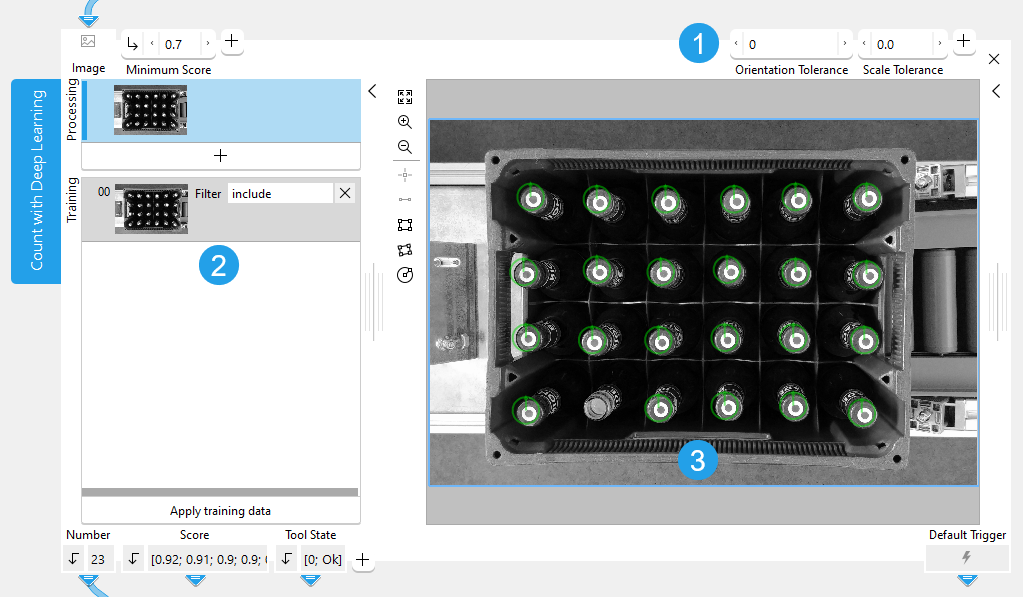
 Training parameters
 Training area
 Graphics window
Shown Images
The training section shows the processing image and the training images.
- The processing image: the current "Image" received from a previous tool.
- Training images: the images that are used for the training of the deep learning model.
Training
To train the deep learning model, you first have to define at least one reference object to be counted and adjust the training parameters accordingly. It is also possible to define multiple reference objects. In this case, you have to add a training image for each reference object. After performing the training, you can check the results and make further adjustments if required.
Defining the Reference Objects
- Add a training image that shows the object to be counted via the
 button or via the shortcut F3.
 - Set the filter type for the training image to "include".
- In the training image, draw an ROI over the object to be counted. This object will be used as reference object for the training.
- If you want to count another object, add a new training image with filter type "include", and draw an ROI over the respective reference object. You can repeat this for each type of object you want to count in your images.
- Optionally, add one or multiple training images with filter type "exclude" to specify objects that should not be counted. This might be useful if there are objects that look similar but should not be included in the counting.
- To check if the current settings for the specified reference objects work fine, perform the training and check the results. However, if the objects should be detected in different orientation and scaling, you can first adjust the training settings as described in the next section.
The tool is designed to train only one object per training image. Thus, you have to make sure to select only one object per training image. If you add multiple ROIs to a training image, they will be considered as one composite object.
Defining the Training Settings and Applying the Training
The training parameters can be used to configure settings with respect to orientation and scaling. With the default settings of the training parameters, the deep learning model is trained to detect the objects only in the orientation and scaling in which they where defined in the respective training image.
- If the objects to be counted might occur in different orientations, adjust the training parameter "Orientation Tolerance".
- If the objects to be counted might be scaled differently in the images, adjust the training parameter "Scale Tolerance" accordingly.
- To check if the current training settings work fine, perform the training and check the results as described in the next section.
When the training is applied, additional training images are automatically generated with different orientations and scaling of the objects. The number of additional training images that are generated during the training depends on the settings of the training parameters. The higher the values of "Orientation Tolerance" and "Orientation Tolerance Step", the more images are generated for the training.
The values of the training parameters influence both the duration of the training and the processing time. The more additional training images are generated during training, the longer it takes to train the model. During processing, the detection of objects to be counted also takes longer as the tool checks for the objects in various orientations and scaling factors.
We recommend setting the values of "Orientation Tolerance" and "Scale Tolerance" just as high as required to find and count all desired objects but not higher in order to avoid that the training takes longer as necessary.
If the orientation of the objects to be counted is known, you can train the known orientations by adding a new training image for each orientation in which the objects might occur. For example, if the objects are always shown with an orientation of either 0° or 90°, you can add two training images: one in which a reference object with orientation of 0° is defined and one in which a reference object with an orientation of 90° is defined. This way, the trained deep learning model will be able to count the objects in the orientation of these two reference objects. In this case, it is not required to adjust the training parameter "Orientation Tolerance" to ensure that the objects will be counted in both orientations. The same applies for the scaling of the objects.
Performing the Training and Checking the Results
If you added the training images with the respective reference objects and checked the training settings, you can train the deep learning model and check the results as follows:
- Click "Apply training data" to perform the training.
- Run the application with a series of images and check if the objects are counted correctly in all images.
- If necessary, make some adjustments at the search parameter or the training, for example, adjusting the ROIs around the reference objects or adjusting the training parameters. Keep in mind that you have to perform the training anew if you adjusted a training ROI or a training parameter.
Support of Artificial Intelligence Acceleration Interfaces (AI²)
MERLIC comes with Artificial Intelligence Acceleration Interfaces (AI²) for the NVIDIA® TensorRT™ SDK and the Intel® Distribution of OpenVINO™ toolkit. Thus, you can use AI accelerator hardware as processing unit that is compatible with the NVIDIA® TensorRT™ or the OpenVINO™ toolkit to perform optimized inference on the respective hardware. This way, you can achieve significantly faster deep learning inference times. The respective hardware can be selected at the tool parameter "Processing Unit".
For more information on the installation and the prerequisites, see the AI² Interfaces for Tools with Deep Learning.
Parameters
Basic Parameters
Image:
This parameter represents the image in which the objects will be counted.
Minimum Score:
This parameter is a numeric value that determines the minimum similarity of a detected object to the reference object. If the similarity of an object is smaller that the value defined for this parameter, the object is not counted.
The value is defined as a real number and set to 0.5 by default. You can change the minimum score at the corresponding connector. The value must be greater than 0 but no greater than 1. The higher the "Minimum Score" the lower the number of candidates and the faster the search.
You may test the current "Minimum Score" by running the application step by step and check if the presence of the objects is found correctly within all images.
Additional Parameters
Processing Region:
This parameter defines the region for processing. Image parts outside of the union of the ROI and "Processing Region" are not processed. In addition, if either of them is empty, the image part inside of the other one is processed. In case both of them are empty, the whole image is processed.
By default, "Processing Region" is defined as empty region. To specify a "Processing Region", you have to connect the parameter to an appropriate region result of a previous tool to make sure that a region is transmitted to this tool.
ROI:
This parameter defines the region of interest (ROI) for processing. Image parts outside of the union of the ROI and "Processing Region" are not processed. In addition, if either of them is empty, the image part inside of the other one is processed. In case both of them are empty, the whole image is processed.
By default the ROI is defined as an empty ROI. If you want to use a non-empty ROI for the processing, you either have to connect the parameter to an appropriate ROI result of a previous tool or you have to draw new ROIs into the image using the available ROI buttons.
Alignment Data:
This parameter represents the alignment data that are used to align the ROI. By default no alignment data are connected and thus no effect is visible. If you want to use specific alignment data, you have to connect the parameter to an appropriate result of a previous tool such as Determine Alignment with Matching, Determine Alignment with Straight Border, Align Image, or Rotate Image.
Maximum Overlap:
This parameter defines the maximum allowable overlap of the objects to be counted. The overlap is determined with respect to the smallest surrounding rectangle around the object and not the area of the object itself. Therefore it is possible that two objects overlap even though their actual areas do not intersect.
The parameter is represented as a percentage value and set to 50% by default. This means that up to 50% of the smallest surrounding rectangle of an object may be occluded in the search image to be included in the counting. You can set the parameter to a value between 0 and 100. If the value is set to 0, no overlap at all is allowed and only objects without any overlap will be counted. However, the higher the "Maximum Overlap", the higher is the risk that wrong objects are found.
Processing Unit:
This parameter defines the device used for processing the images. The parameter is set to "auto" by default. In this mode, MERLIC tries to choose a suitable GPU as processing unit because it usually performs better than the CPU. However, this requires at least 4 GB of available memory on the respective GPU. If no suitable GPU is found, the CPU is used as fallback.
You can also choose the processing unit manually. Click on the parameter to select the device from the list of all available processing units. If you are choosing a GPU as processing unit, we recommend to check that enough memory is available for the used deep learning model. Otherwise, undesirable effects such as slower inference times might occur.
MERLIC also supports the use of AI accelerator hardware that is compatible with the NVIDIA® TensorRT™ SDK or the OpenVINO™ toolkit:
- NVIDIA® GPUs
- CPUs, Intel® GPUs, Intel® VPUs (MYRIAD and HDDL) with support of the OpenVINO™ toolkit
The respective devices are marked either with the prefix "TensorRT(TM)" or "OpenVINO(TM)". If you select a device that supports NVIDIA® TensorRT™ or the OpenVINO™ toolkit, the memory will be initialized on the device via the respective plug-in for the AI² interface.
As soon as an AI accelerator hardware has been selected as processing unit, the optimization of the deep learning model is started. After the optimization, all parameters that represent model parameters will be internally set to read-only. Thus, their values cannot be changed anymore as long as the selected AI accelerator is used as processing unit. To change the parameters, you first have to change the processing unit to a different one without any AI acceleration. After setting the parameters, you can set the processing unit back to the respective AI accelerator hardware.
CPUs with support of the OpenVINO™ toolkit can be used without any additional installation steps. They will be automatically available in the list of available processing units. If multiple processing units with the same name are available, an index number is assigned to their name. The same applies to GPUs with support of the NVIDIA® TensorRT™.
To use GPUs and VPUs with the support of the OpenVINO™ toolkit as processing unit, the Intel® Distribution of OpenVINO™ toolkit must be installed on your computer and MERLIC must be started in an OpenVINO™ toolkit environment. See the topic AI² Interfaces for Tools with Deep Learning for more detailed information on the prerequisites.
Besides the optimization via AI accelerator hardware, MERLIC supports further dynamic optimizations via the NVIDIA® CUDA® Deep Neural Network (cuDNN). This optimization can be enabled via the MERLIC preferences in the MERLIC Creator. For more information, see the topic MERLIC Preferences.
Precision:
This parameter defines the data type that is used internally for the optimization of the deep learning model for inference, that is, it defines the precision to which the model is converted to. The offered data types depend on the selected processing unit. It is set to "float32" by default.
There might be some processing units that support only one data type. In this case, only the supported data types will be available at the parameter as soon as the respective device has been selected at the parameter "Processing Unit". If the processing unit is selected automatically, that is, if "Processing Unit" is set to "auto", only the data type "float32" is available.
Training Parameters
The values of the training parameters influence both the duration of the training and the processing time. The more additional training images are generated during training, the longer it takes to train the model. During processing, the detection of objects to be counted also takes longer as the tool checks for the objects in various orientations and scaling factors.
Basic Training Parameters
Orientation Tolerance:
This parameter influences in which orientations the reference objects will be trained. Therefore, it also determines whether the trained deep learning model will find and count the respective objects if they are rotated in the search images.
The value is defined in degrees and set to 0° by default. This means that the objects are trained without any further orientation tolerance and the deep learning model will count the objects in the processing mode only if they appear in the same orientation as in the training images. You can set the parameter to a value in the range of 0° to 180°.
When adjusting this parameter, also the value of the training parameter "Orientation Tolerance Step" should be considered because it defines how detailed the specified orientation tolerance is included in the training. During the training, additional training images are automatically generated with different orientations of the objects. The values of "Orientation Tolerance" and "Orientation Tolerance Step" determine how many of these additional training images are generated. "Orientation Tolerance" defines how much the objects may be rotated in the image. "Orientation Tolerance Step" defines for which angles within the specified orientation tolerance an additional training image is generated. For each orientation step, a training image will be generated in which the object is rotated accordingly. The generated training images will then be included during the training in addition to the original training image.
For example, if "Orientation Tolerance" is set to 20, the objects will be considered for the training with an orientation range between -20° to +20°. If "Orientation Tolerance Step" is set to 10 at the same time, the specified tolerance for the orientation will be applied during the training in steps of 10°. This means that during the training, four additional images will be generated. These additional training images will represent the reference object in different orientation steps of -20°, -10°, 10°, and 20°. The orientation of 0° represents the actual orientation of the object in the training image.
Scale Tolerance:
This parameter influences in which scaling the reference objects will be trained. Therefore, it also determines whether the trained deep learning model will find and count the respective objects if they are appear scaled in the search images.
The value is defined as a real number and set to 0 by default. This means that the objects are trained without any further scaling tolerance and the deep learning model will count the objects in the processing mode only if they appear in the same size as in the training images. You can set the parameter at the corresponding connector.
When adjusting this parameter, also the value of the training parameter "Scale Tolerance Step" should be considered because it defines how detailed the specified scale tolerance is included in the training. During the training, additional training images are automatically generated with different scaling of the objects. The values of "Scale Tolerance" and "Scale Tolerance Step" determine how many of these additional training images are generated. "Scale Tolerance" defines how much the objects may be scaled in the image. "Scale Tolerance Step" defines for which scale factors within the specified scaling tolerance an additional training image is generated. For each scale step, a training image will be generated in which the object is scaled accordingly. The generated training images will then be included during the training in addition to the original training image.
For example, if "Scale Tolerance" is set to 0.3, the objects will be considered for the training with a scale factor in the range between -0.3 to +0.3. If "Scale Tolerance Step" is set to 0.1 at the same time, the specified tolerance for the scaling will be applied during the training in scale factor steps of 0.1. This means that during the training, six additional images will be generated. These additional training images will represent the reference object in different scaling steps of -0.3, -0.2, -0.1, 0.1, 0.2, and 0.3. The scaling step of 0 represents the actual size of the object in the training image.
Additional Training Parameters
Orientation Tolerance Step:
This parameter influences in which orientation steps the reference objects will be trained.
The value is defined in degrees and set to 5° by default. You can set the parameter to a value in the range of 0° to 180°. If the value of "Orientation Tolerance" is set to 0, this parameter has no effect.
This parameter should only be changed in consideration with the training parameter "Orientation Tolerance" because the orientation steps refer to the tolerance value defined in "Orientation Tolerance". For each orientation step within the range defined in "Orientation Tolerance", a training image will be generated in which the object is rotated accordingly. For more detailed information on how the combination of the two training parameters affects the training, see the description of the parameter Orientation Tolerance.
Scale Tolerance Step:
This parameter influences in which scaling steps the reference objects will be trained.
The value is defined as a real number and set to 0.1 by default. This means that the defined "Scale Tolerance" will be considered for the training in scaling steps with factor 0.1. You can change the value at the corresponding connector. If the value of "Scale Tolerance" is set to 0, this parameter has no effect.
This parameter should only be changed in consideration with the training parameter "Scale Tolerance" because the scaling steps refer to the tolerance value defined in "Scale Tolerance". For each scaling step within the range defined in "Scale Tolerance", a training image will be generated in which the object is scaled accordingly. For more detailed information on how the combination of the two training parameters affects the training, see the description of the parameter Scale Tolerance.
Basic Results
Number:
This results returns the number of objects that were counted with the current parameter settings. The result is returned as an integer number.
Score:
This result returns the determined score of each counted object, that is, a real number that indicates how much the counted object matches the trained model. If more than one object was counted in the image, the respective scores are returned in a tuple.
Tool State:
"Tool State" returns information about the state of the tool and thus can be used for error handling. For more information, see Tool State Result
Additional Results
Object Location:
This result returns the region contours of the counted objects.
Orientation Arrow:
This result returns the arrows indicating the orientation of the model that was generated during the training. The result is returned as a contour.
X:
This result returns the X coordinates of the counted objects. The returned X and Y coordinates correspond to the centers of the region contours returned in "Object Location".
Y:
This result returns the Y coordinates of the counted objects. The returned X and Y coordinates correspond to the centers of the region contours returned in "Object Location".
Used Processing Unit:
This result returns the processing unit that was used in the last iteration. You can use this result to check which processing unit was actually used if the parameter "Processing Unit" is set to "auto" or to check that the correct one was used.
Precision Data Type:
This result returns the data type that was used internally for the optimization of the deep learning model for inference. You can use this result to check if the correct precision was used in case any problems occur.
If a problem occurs during an iteration of your MVApp, you could check if this result returns a different data type than expected and also have a look at the log file for more details. For more information, see Logging.
Processing Time:
This result returns the duration of the most recent execution of the tool in milliseconds. The result is provided as additional result. Therefore, it is hidden by default but it can be displayed via the button beside the tool results. For more information see the section Processing Time in the tool reference overview.
Application Examples
This tool is used in the following MERLIC Vision App examples:
- count_bottles_with_deep_learning.mvapp


