 Tab View
This widget enables you to create a user interface for the Frontend that consists of tabbed views. This is useful if you want to visualize different components of your user interface on different tab cards. Each view can be customized individually and will be displayed in its own tab card in the Frontend. The properties of the widget enable you to adjust the visualization settings of the tab view.
To get a detailed description how to configure the "Tab View" widget for this kind of user interface, please refer to the chapter Creating a User Interface with Tabbed Views.
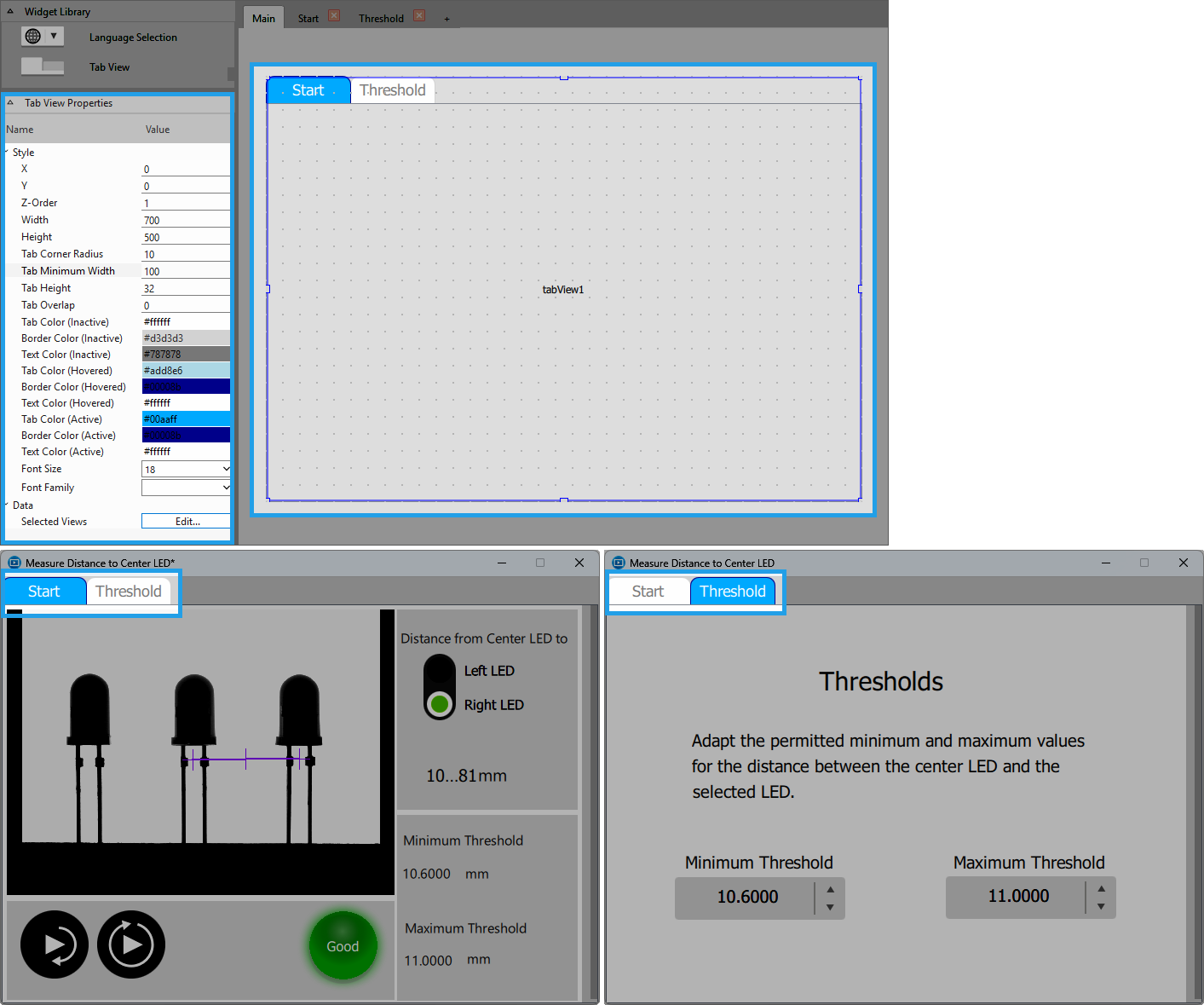
Style
X, Y:
Adjust the position of the widget by typing the desired coordinate values of the upper left corner into the input field.
Z-Order:
Adjust the z-order of the widget by typing the desired value into the input field. This defines which widget is displayed on top if several widgets are positioned at the same place, for example, if widget "A" has "Z-Order" "0" and widget "B" has "Z-Order" "1", widget "B" will be displayed on top of widget "A".
Width:
Adjust the width of the widget. The width is defined in pixels and set to 150 by default. To change the value, type the new width into the input field. It must be at least 60 and not be bigger than 2147483647.
Height:
Adjust the height of the widget. The height is defined in pixels and set to 150 by default. To change the value, type the new height into the input field. It must be at least 20 and not be bigger than 2147483647.
Tab Corner Radius:
Adjust the corner radius of the tabs by typing the desired value directly into the input field. It is defined in pixels and set to 10 by default.
Tab Minimum Width:
Adjust the minimum width of the tabs. The width is defined in pixels and set to 100 by default. To change the value, type the new width into the input field. It must be at least 50.
Tab Height:
Adjust the height of the tabs. The height is defined in pixels and set to 32 by default. To change the value, type the new width into the input field. It must be at least 10.
Tab Overlap:
Define the overlap between several tabs. It is set to 0 by default, i.e., the tabs do not overlap. To change the value, type the desired value into the input field.
Tab Color (Inactive):
Adjust the color of the tabs for the case they are inactive. To change the color, click into the color field and select a new color in the color selection dialog or enter the color code manually.
Border Color (Inactive):
Adjust the border color of the tabs for the case they are inactive. To change the color, click into the color field and select a new color in the color selection dialog or enter the color code manually.
Text Color (Inactive):
Adjust the font color of the tabs for the case they are inactive. To change the color, click into the color field and select a new color in the color selection dialog or enter the color code manually.
Tab Color (Hovered):
Adjust the color of the tabs for the case that the mouse is currently hovering over the respective tab. To change the color, click into the color field and select a new color in the color selection dialog or enter the color code manually.
Border Color (Hovered):
Adjust the border color of the tabs for the case that the mouse is currently hovering over the respective tab. To change the color, click into the color field and select a new color in the color selection dialog or enter the color code manually.
Text Color (Hovered):
Adjust the font color of the tabs for the case that the mouse is currently hovering over the respective tab. To change the color, click into the color field and select a new color in the color selection dialog or enter the color code manually.
Tab Color (Active):
Adjust the color of the tabs for the case they are active. To change the color, click into the color field and select a new color in the color selection dialog or enter the color code manually.
Border Color (Active):
Adjust the border color of the tab for the case it is active. To change the color, click into the color field and select a new color in the color selection dialog or enter the color code manually.
Text Color (Active):
Adjust the font color of the tabs for the case they are active. To change the color, click into the color field and select a new color in the color selection dialog or enter the color code manually.
Font Size:
Adjust the size of the displayed font. Select the font size from the combo box or type the value directly into the input field.
Font Family:
Select the font family of the displayed text in the drop-down menu of this property.
Data
Selected Views:
Select the views that shall be displayed in tab cards in the Frontend. Click on the "Edit..." button of the property to open the selection dialog and add the views you want to visualize in tab cards via the arrow buttons. You may choose from all existing views. Each selected view will be displayed in its own tab card. You can also define the order in which the tab cards of the views are displayed by sorting the selected views.
Application Example
This widget is used in the following MERLIC Vision App examples:
- demonstrate_evaluate_expression.mvapp


