 Write Access
This widget allows you to control write access in the MERLIC Frontend when using MERLIC in Runtime Environment mode (MERLIC RTE).
When MERLIC RTE is started, the control over MERLIC is automatically granted to the used communication device. The connected MERLIC Frontend is locked for any user interactions and modifications. The MERLIC Frontend can then only be used for monitoring the state and results of the MERLIC application.
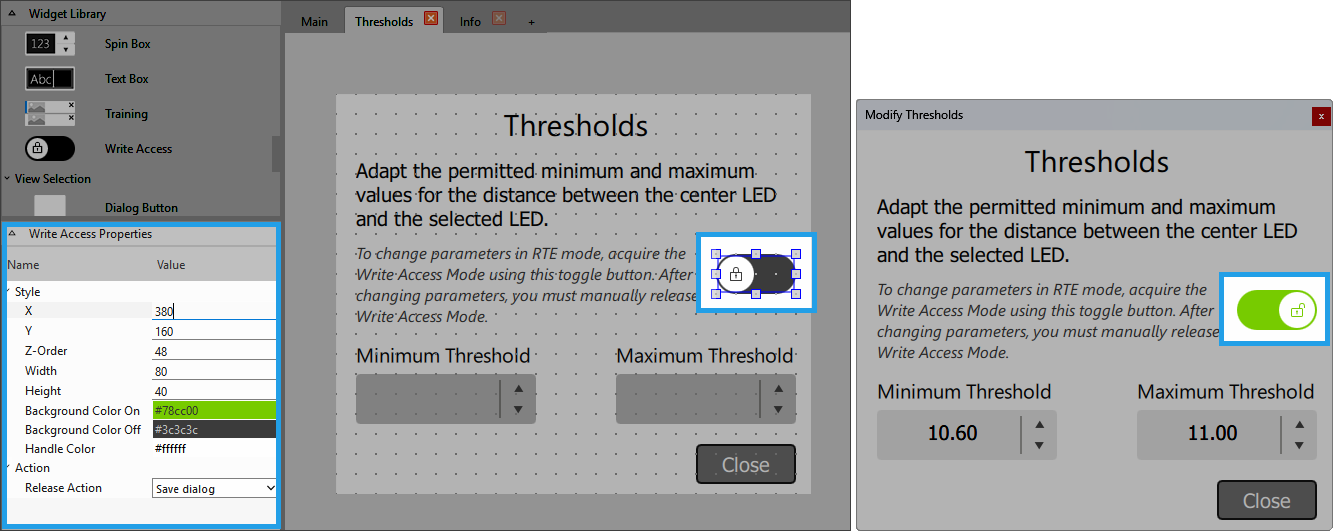
To accommodate use cases where it is required to allow user interactions and modifications in the MERLIC Frontend while MERLIC RTE is running, you can add the "Write Access" widget to the Frontend design of the MVApp. If the MVApp is configured accordingly and loaded in MERLIC RTE mode, users are then allowed to acquire write access in the MERLIC Frontend.
If the MERLIC Frontend is opened from the Frontend Designer or MERLIC Creator, usually while implementing the MVApp, the "Write Access" widget will be disabled because the control is automatically granted by MERLIC Creator. In this case, there is no need to explicitly acquire write access.
For more information, see Write Access in the Frontend and Acquiring and Releasing Write Access in the Frontend.
In MERLIC RTE mode, write access in the MERLIC Frontend is intended only for temporary use. For example, to adjust some parameters and validate the changes with a few executions. Afterward, write access should be released to return control to the used communication device such as a programmable logic controller (PLC). The write access mode in the MERLIC Frontend is not intended for continuous use!
Style
X, Y:
Adjust the position of the widget by typing the desired coordinate values of the upper left corner into the input field.
Z-Order:
Adjust the z-order of the widget by typing the desired value into the input field. This defines which widget is displayed on top if several widgets are positioned at the same place, for example, if widget "A" has "Z-Order" "0" and widget "B" has "Z-Order" "1", widget "B" will be displayed on top of widget "A".
Width:
Adjust the width of the widget. The width is defined in pixels and set to 80 by default. To change the value, type the new width into the input field. It must be at least 40 and not be bigger than 2147483647.
Height:
Adjust the height of the widget. The height is defined in pixels and set to 40 by default. To change the value, type the new height into the input field. It must be at least 20 and not be bigger than 2147483647.
Background Color On:
Adjust the background color of the widget for the case that write access is acquired in the Frontend. To change the color, click into the color field and select a new color in the color selection dialog or enter the color code manually.
Background Color Off:
Adjust the background color of the widget for the case that write access is released in the Frontend. To change the color, click into the color field and select a new color in the color selection dialog or enter the color code manually.
Handle Color:
Adjust the color of the button handle. To change the color, click into the color field and select a new color in the color selection dialog or enter the color code manually.
Release Action:
Choose the action that shall be triggered when write access is released. This action will be triggered no matter how write access is released. You can choose between the following options:
|
Value |
Description |
|---|---|
|
Save dialog |
When write access is released while there are unsaved changes, a save dialog appears that allows the user to save or discard the changes. It is even possible to give a description with a reason for the change. |
|
Auto save |
When write access is released while there are unsaved changes, the changes will be saved automatically. |


