 Spin Box
This widget can be used as a spin box in the Frontend to adjust the value of a connected parameter. You can connect the widget to parameters with integer values. In contrast to the Slider widget, the spin box allows you to set the parameter values precisely to a specific value. This is helpful in case the parameter value shall be set to a precise value. If there are only very few values to choose from you can also use the Radio Button Group widget.
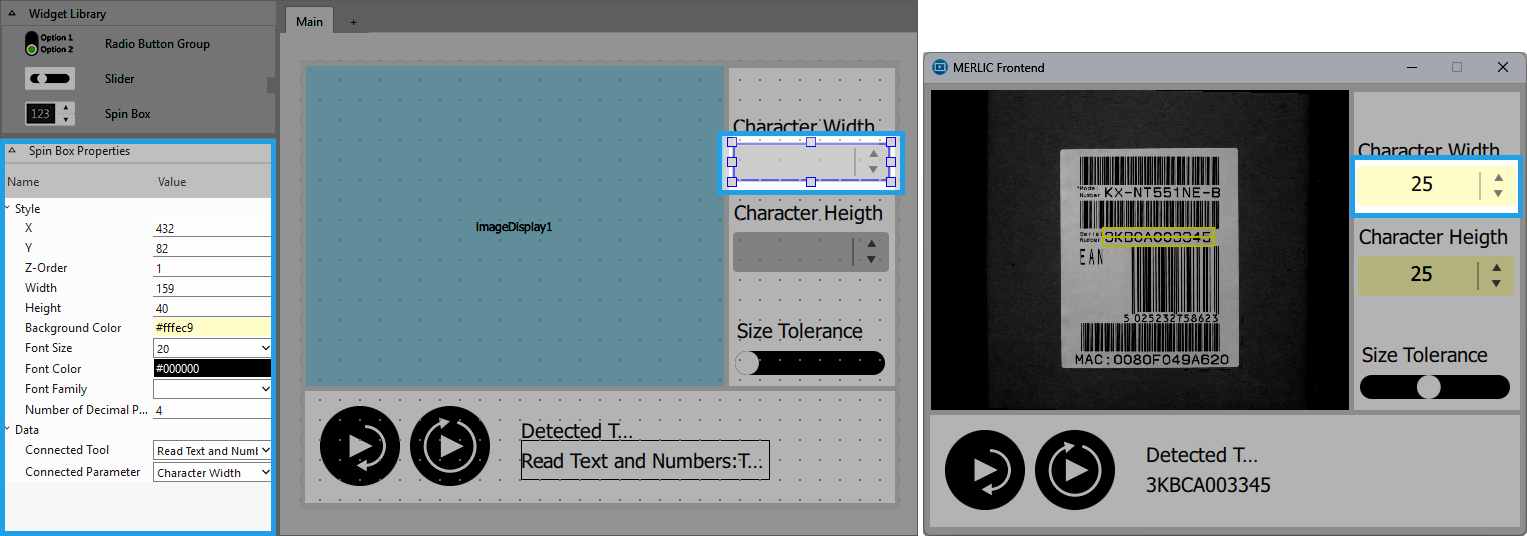
Style
X, Y:
Adjust the position of the widget by typing the desired coordinate values of the upper left corner into the input field.
Z-Order:
Adjust the z-order of the widget by typing the desired value into the input field. This defines which widget is displayed on top if several widgets are positioned at the same place, for example, if widget "A" has "Z-Order" "0" and widget "B" has "Z-Order" "1", widget "B" will be displayed on top of widget "A".
Width:
Adjust the width of the widget. The width is defined in pixels and set to 200 by default. To change the value, type the new width into the input field. It must be at least 80 and not be bigger than 2147483647.
Height:
Adjust the height of the widget. The height is defined in pixels and set to 50 by default. To change the value, type the new height into the input field. It must be at least 40 and not be bigger than 2147483647.
Background Color:
Adjust the background color of the spin box. To change the color, click into the color field and select a new color in the color selection dialog or enter the color code manually.
Font Size:
Adjust the size of the displayed font. Select the font size from the combo box or type the value directly into the input field.
Font Color:
Adjust the color of the displayed values. To change the color, click into the color field and select a new color in the color selection dialog or enter the color code manually.
Font Family:
Select the font family of the displayed values in the drop-down menu of this property.
Number of Decimal Places:
Define the number of decimal places that are displayed in case the widget is connected to a parameter with decimal values. It is set to 4 by default. You can change the number to a value from 0 to 8.
Data
If you create a tool group in your MVApp, make sure to connect your tool parameters and results in the Frontend Designer before grouping. For more information, see Connecting to Tools in a Group in Adjusting Your Widgets.
Connected Tool:
Connect to a tool from your MERLIC Vision App by selecting the desired tool from the drop-down menu. You can only select tools that are used in your MERLIC Vision App. At the property "Connected Parameter" you may then select the parameter whose value you want to display in the widget.
Connected Parameter:
Select the parameter of the connected tool whose value you want to display from the drop-down menu. The list shows only the parameters of the tool that is selected in the property "Connected Tool". Therefore, you have to make sure that the widget is connected to a tool before selecting a parameter.
Application Example
This widget is used in the following MERLIC Vision App examples:
- measure_distance_segment_circle_calibrated.mvapp
- measure_distance_to_center_led.mvapp


