 Image Display
This widget can be used to display any kind of graphical output generated by your MERLIC Vision App. This includes images, regions of interest (ROIs), regions, contours, and text. Furthermore, the widget enables you to integrate a toolbar for editing selected ROIs.
The widget also supports to zoom and move the displayed image in the Frontend. To reset the image to the default size and position, use the shortcut Ctrl+ 0.
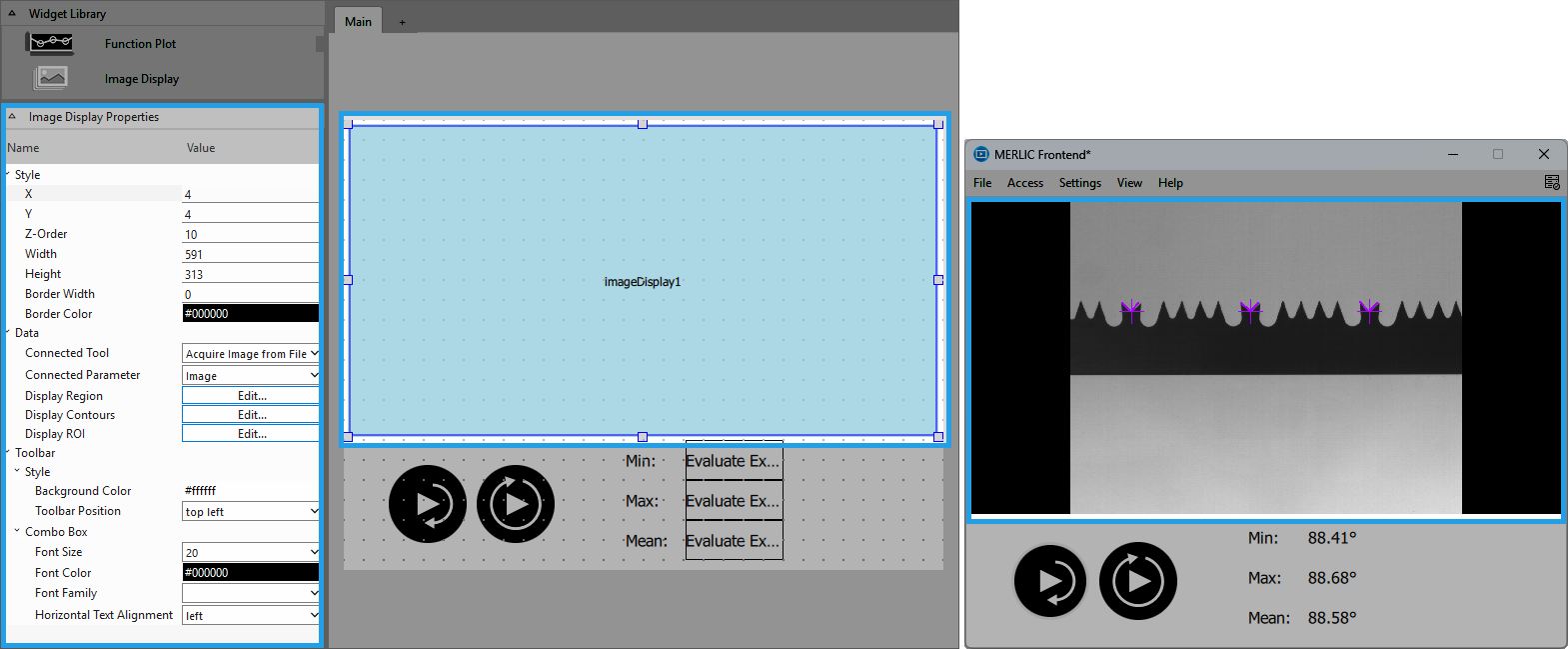
Style
X, Y:
Adjust the position of the widget by typing the desired coordinate values of the upper left corner into the input field.
Z-Order:
Adjust the z-order of the widget by typing the desired value into the input field. This defines which widget is displayed on top if several widgets are positioned at the same place, for example, if widget "A" has "Z-Order" "0" and widget "B" has "Z-Order" "1", widget "B" will be displayed on top of widget "A".
Width:
Adjust the width of the widget. The width is defined in pixels and set to 100 by default. To change the value, type the new width into the input field. It must be at least 50 and not be bigger than 2147483647.
Height:
Adjust the height of the widget. The height is defined in pixels and set to 100 by default. To change the value, type the new height into the input field. It must be at least 50 and not be bigger than 2147483647.
Border Width:
Adjust the width of the widgets border. The width is defined in pixels and set to 0 by default, i.e., there is no border around the image area in the Frontend. To change the value, type the new width into the input field.
Border Color:
Adjust the color of the widgets border. To change the color, click into the color field and select a new color in the color selection dialog or enter the color code manually.
Data
If you create a tool group in your MVApp, make sure to connect your tool parameters and results in the Frontend Designer before grouping. For more information, see Connecting to Tools in a Group in Adjusting Your Widgets.
The chapter Adjusting Your Widgets contains a detailed description how to access iconic parameters and results for the visualization in the Frontend.
Connected Tool:
Connect to a tool from your MERLIC Vision App by selecting the desired tool from the drop-down menu. You can only select tools that are used in your MERLIC Vision App. At the property "Connected Parameter" you may then select the parameter whose value you want to display in the widget.
Connected Parameter:
Select the iconic parameter, i.e., the image, of the connected tool you want to display from the drop-down menu. The list shows only the image parameters of the tool that is selected in the property "Connected Tool". Therefore, you have to make sure that the widget is connected to a tool before selecting a parameter.
Display Region:
Select the regions that shall be displayed in the connected image. Click on the "Edit..." button of the property to open the selection dialog and add the desired regions you want to display via the arrow buttons. You may choose from all regions of your MERLIC Vision App. You can also adjust the drawing order by changing the order of the selected regions above the 'Selected regions' area.
Display Contours:
Select the contours that shall be displayed in the connected image. Click on the "Edit..." button of the property to open the selection dialog and add the desired contours you want to display via the arrow buttons. You may choose from all contours of your MERLIC Vision App. You can also adjust the drawing order by changing the order of the selected contours above the 'Selected Contours' area.
Display ROI:
Select the ROIs that shall be displayed in the connected image. Click on the "Edit..." button of the property to open the selection dialog and add the ROIs you want to display via the arrow buttons. You may choose from all ROIs of your MERLIC Vision App. You can also adjust the drawing order by changing the order of the selected ROIs above the 'Selected regions of interest' area.
On the right of the selection dialog you can configure the settings of each selected ROI. Among other things you may define if an ROI can be edited in the Frontend. The section "ROI Properties" contains more information about the settings which can be adjusted for the ROIs.
 ROI Properties
If you are using the "Display ROI" property to select ROIs to be displayed in the Frontend, you can make some further adjustments for these ROIs. The following properties are available for each ROI that has been selected in the "Display ROI" property.
Edit:
Define if the selected ROI can be edited in the Frontend. You may choose between the following settings:
- Display only: The ROI cannot be edited in the Frontend. If this setting is also defined for all other selected ROIs, the ROI toolbar will not be displayed in the Frontend.
- Move and Modify: The ROI can be moved and modified in the Frontend. An ROI toolbar will be added to the "Image Display" widget. In the toolbar you can select the ROI to be edited in the Frontend. In case no other selected ROI is set to the last option, the ROI toolbar will consist only of the combo box that displays the name of the selected and editable ROIs.
- Move, Modify, Add, Delete: In addition to moving and modifying an ROI, it can also be deleted and even a new ROI can be added to the image. An ROI toolbar will be added to the "Image Display" widget. This allows you to select the ROI to be edited and offers you buttons for the available ROI types and configurations for editing ROIs in the Frontend.
When easyTouch is active, ROIs can not be edited, even if you defined them to be editable. The corresponding option dialog will not be shown anymore. But if easyTouch is not active and the ROI is set to be editable, an ROI toolbar is displayed above the image display like the one shown below. It consists of a combo box and several buttons for editing options. The combo box lists the names of the ROIs that are available for editing. The combo box also visualizes the color that has been set as "Inactive Color" for the ROI. The buttons correspond to the ROI selection buttons of the tools within the MERLICMERLIC Creator. They can be used to draw new ROIs into the image. The last button enables you to delete selected ROIs.
See also the chapter Working with ROIs for more information about how to create and modify ROIs.

Name:
Define the name of the selected ROI. The name of the ROI will be displayed in the ROI toolbar if the ROI is set to be editable.
Active Color:
Adjust the color of the selected ROI for the case that it is currently selected by a mouse click within the image display. To change the color, click into the color field and select a new color in the color selection dialog or enter the color code manually.
Inactive Color:
Adjust the color for the selected ROI for the case that it is currently not selected in the Frontend. To change the color, click into the color field and select a new color in the color selection dialog or enter the color code manually.
Properties
The following properties define the style and position of the ROI toolbar. The toolbar is not displayed by default. It is only displayed if at least one ROI has been selected in the "Display ROI" property and the corresponding "Edit" property has been set to "Move and Modify" or "Move, Modify, Add, Delete".
Style
Background Color:
Adjust the background color of the toolbar. To change the color, click into the color field and select a new color in the color selection dialog or enter the color code manually.
:
Adjust the position of the toolbar. It is set to "top left" by default. You can also select "top right", "bottom left", and "bottom right" at the drop-down menu.
Combo Box Properties
The following properties mainly refer to the names of the selected ROIs that are displayed in the combo box of the ROI toolbar.
Font Size:
Adjust the size of the ROI names that are displayed in the toolbar. Adjust the size of the displayed font. Select the font size from the combo box or type the value directly into the input field.
Font Color:
Adjust the color of the ROI names that are displayed in the toolbar. To change the color, click into the color field and select a new color in the color selection dialog or enter the color code manually.
Font Family:
Select the font family of the ROI names that are displayed in the toolbar in the drop-down menu.
Horizontal Text Alignment:
Adjust the horizontal alignment of the ROI names that are displayed in the combo box. It is set to "left" by default. You can also select "center" and "right" for the alignment at the drop-down menu.
Application Example
This widget is used in all MERLIC Vision App examples.


